Best Background Remover Tools for Social Media (2026 Guide)
The best background remover tools for social media are AI-powered, web-based applications that create transparent PNG images in a single click. They require no technical skills and process photos in seconds, allowing creators to produce professional graphics quickly. The main benefit is significant time savings over manual editing software.
Imagine this scenario: you’re a social media manager for an e-commerce brand, and a flash sale needs to go live in an hour. You have a great product photo on your phone, but the background is your cluttered office. In the past, this meant a frantic, time-consuming session with complex editing software, carefully tracing edges and hoping the result looked clean. Today, that entire workflow has changed. The pressure is still on, but the solution is now measured in seconds, not hours.
What makes a background remover tool ideal for social media content creators?
An ideal background remover for social media creators is fast, automated, and accessible. It should use artificial intelligence to instantly detect the subject and erase the background without requiring any manual input, like drawing lines or making selections. The primary goal is to transform a standard photo into a versatile asset with a transparent background, ready to be dropped onto any design or video thumbnail. This speed is non-negotiable when you’re managing multiple platforms and tight content calendars.
Beyond speed, the key features that truly matter are accuracy and output quality. A great tool delivers clean, precise edges, even around challenging details like hair, fur, or fine fabrics. It shouldn’t leave behind jagged artifacts or awkward, blurry halos. From my experience managing social campaigns, a tool that takes more than 60 seconds to deliver a clean cutout is a workflow killer. The final output must be a high-resolution PNG file without watermarks, ensuring your graphics look sharp and professional on every device.
Accessibility is also a key factor. The best solutions are browser-based, meaning you don’t need to install any software or have a powerful computer. You can upload an image from your phone or desktop and get the result immediately. This simplicity removes the technical barrier that once made professional-looking graphics the exclusive domain of graphic designers. Now, anyone can achieve a polished look, which is essential for maintaining visual branding consistency across all your channels.
How do the top background remover tools compare for different social media platforms?
The best tool often depends on the specific content format of the social media platform you’re targeting. While the core function is the same, the application varies significantly between static posts for Instagram and dynamic video elements for TikTok or YouTube. Your choice of tool should align with your primary content type and workflow.
For platforms like Instagram, Facebook, and Pinterest, the focus is on high-quality static images. Think product mockups, promotional graphics, and engaging carousel posts. Here, you need a background remover that excels at producing crisp, flawless cutouts from high-resolution photos. The resulting PNG becomes a building block for designs in online design platforms or Adobe Express. An accurate cutout allows you to place products on solid color backgrounds, create eye-catching collages, or overlay text without a distracting background.
On the other hand, for video-centric platforms like TikTok, YouTube, and Instagram Reels, speed and efficiency are paramount. Content creators often need a quick background remover for TikTok, Instagram, and YouTube thumbnails or video overlays. The goal is to quickly isolate a person or object to make a thumbnail pop or to create a sticker-like effect in a video. While quality still matters, the ability to process images in bulk or on a mobile device can be a more significant factor. For these platforms, a clean cutout is just the first step in a larger video editing process.
What are the best free background remover tools for social media?
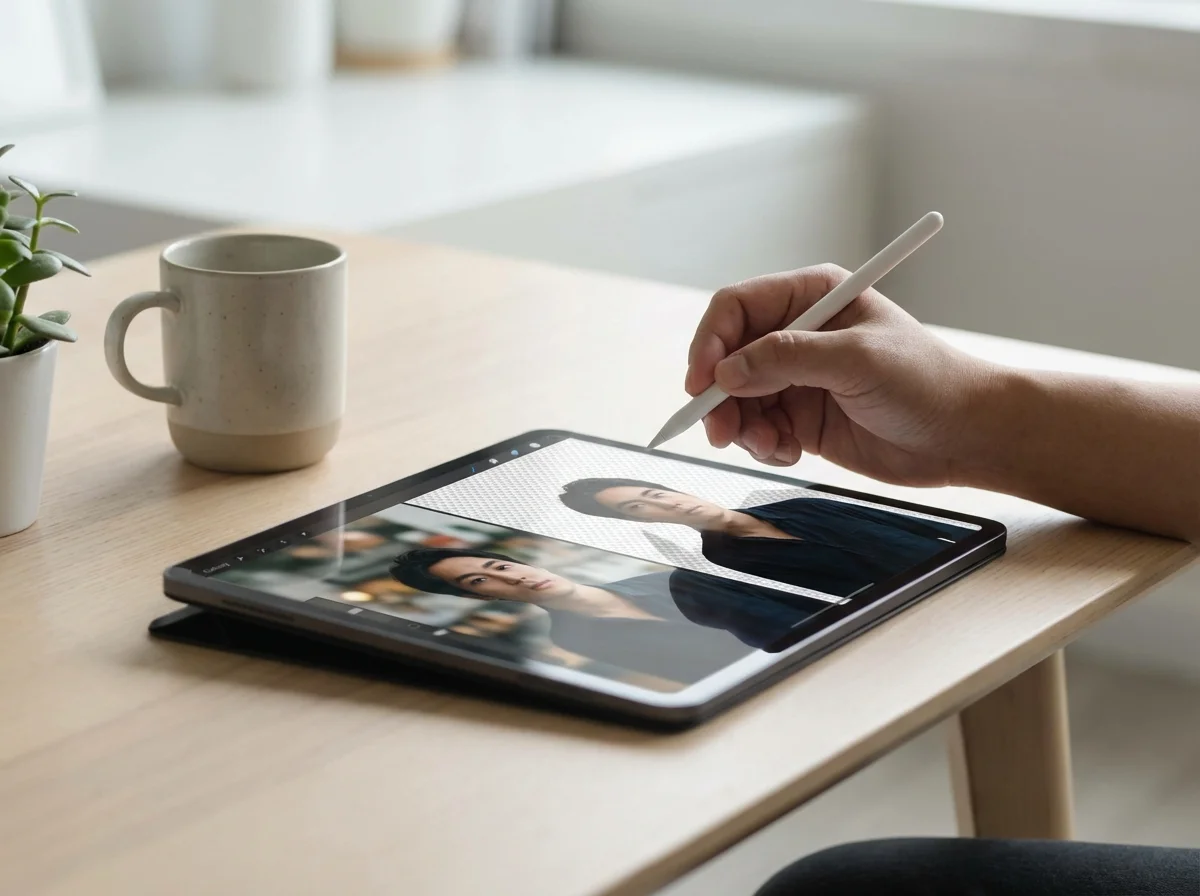
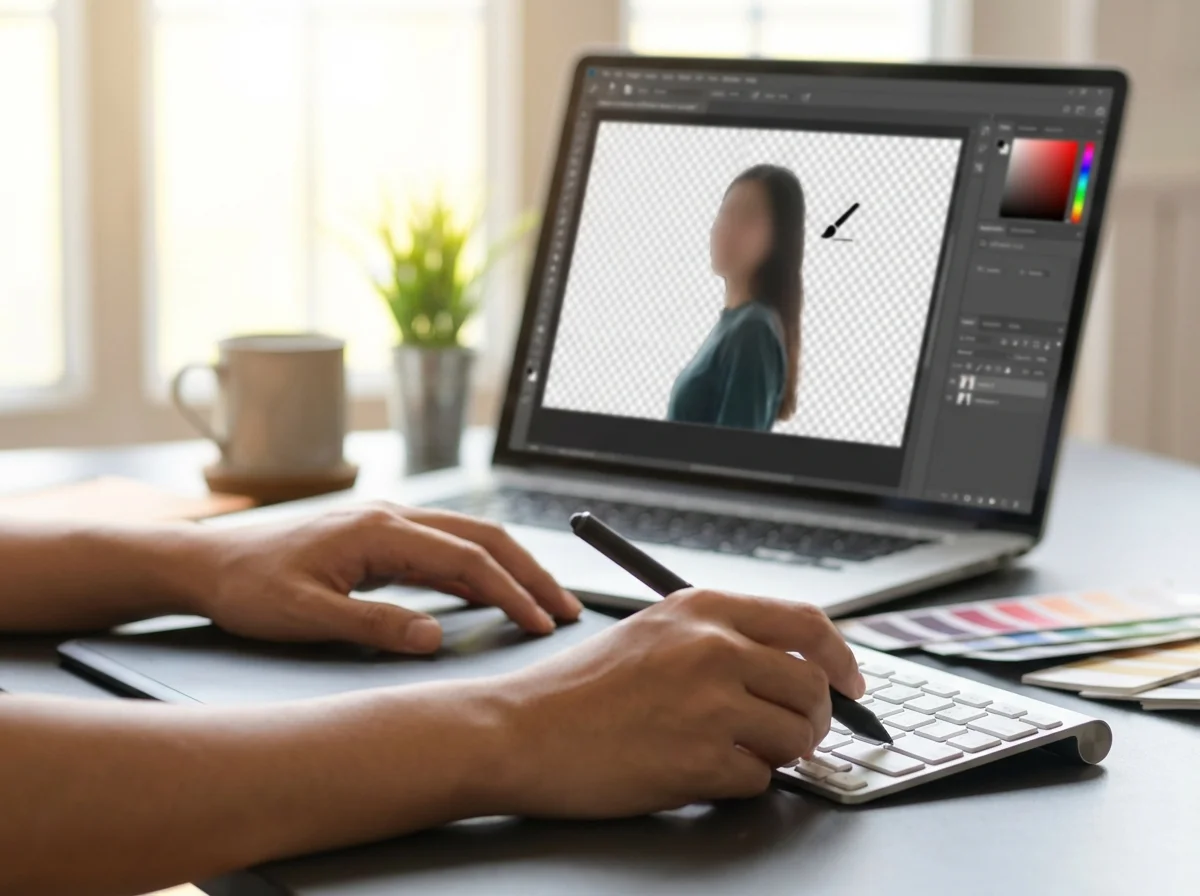
The best free background remover tools for social media are web-based AI platforms that provide instant, high-quality results without requiring a subscription or signup. These tools have democratized photo editing, offering functionality that was once exclusive to expensive desktop software like Photoshop. Their core value is delivering a ready-to-use transparent PNG file in just a few seconds, which you can immediately use in your social media designs.
When evaluating free options, look for three key things: one-click automation, watermark-free downloads, and support for high-resolution images. A truly useful tool won’t ask you to manually refine edges; its AI should be smart enough to handle 99% of cases automatically. For instance, a free background remover can process a complex product photo and deliver a clean cutout before you could even open a traditional photo editor. This is what makes it one of the best free tools to create PNG images.
I’ve tested dozens of these free tools, and the biggest differentiator isn’t just the AI—it’s the business model. The best ones give you a full-resolution download for free, no strings attached. Many others will show you a nice-looking, low-resolution preview and then hit you with a paywall or a required signup to download the full-size version. Always check the download options before you get invested in the result. A truly free tool respects your time and gives you the asset you need without friction.
How to optimize images for social media after background removal?
After removing the background, you must optimize the resulting image for social media to ensure it looks great and loads quickly. The process involves three key steps: choosing the right format, compressing the file, and resizing it to the platform’s specifications. Skipping this stage can lead to slow-loading posts or blurry, pixelated graphics that undermine your brand’s professionalism.
Always start by saving your image with a transparent background as a PNG (Portable Network Graphics). This is one of the 5 essential image formats because, unlike JPEG, it supports transparency. This allows you to place your subject on any new background ly. Once you have your PNG, the next step is compression. PNG files can be quite large, and uploading a heavy image can slow down page load times, which hurts user experience. Using an online image compressor is one of the best ways to compress images without losing quality. This can reduce file size by over 70% with no visible difference.
Here’s a mini case study. An online boutique owner needed to create 10 unique Instagram graphics for a flash sale within an hour. Her product photos had cluttered backgrounds. She used a one-click online background remover for each photo, then compressed the resulting PNGs. The entire process for all 10 images took less than 15 minutes. She dropped the optimized images onto her branded templates and launched the campaign on time. The professional graphics led to a 20% higher click-through rate compared to her previous posts. This workflow aligns perfectly with Google’s image optimization guidelines, which stress the importance of balancing file size and visual quality.
The last step is to resize the image to the correct dimensions for the specific platform and placement. A Facebook cover photo has different dimensions than an Instagram Story. You can find up-to-date dimensions in a reliable social media image size guide. Using the exact dimensions prevents the platform from awkwardly cropping or compressing your image, ensuring it appears exactly as you designed it.

What are common challenges and solutions when removing backgrounds for social media content?
The most common challenges when removing backgrounds are dealing with complex edges like hair, handling subjects that have low contrast with their background, and preserving fine details. While AI tools are incredibly powerful, the quality of your source image plays a huge role in the final result. A clear, well-lit photo will almost always yield a better cutout.
One mistake I keep seeing is people trying to rescue a bad photo with a background remover. If the subject is blurry, poorly lit, or blends in too much with the background (like a white product on a white wall), the AI will struggle. The solution is often not a better tool, but a better photo. Before you even upload, make sure your subject is in sharp focus and stands out clearly. A high-resolution image provides the AI with more data to work with, resulting in a cleaner and more accurate separation.
What most guides won’t tell you—but I’ve learned the hard way—is that lighting is more important than the tool itself. A photo with good, even lighting and a distinct separation between the subject and background will give you a perfect cutout from almost any decent AI tool. If you’re dealing with tricky subjects like semi-transparent objects or intricate patterns, like lace, make sure your source file is as high quality as possible. While modern AI is surprisingly good at preserving these details, starting with a sharp image gives you the best chance of success.
How does circular cropping fit into the social media workflow?
Circular cropping is a crucial final touch for profile pictures and avatars across all social media platforms. After you’ve removed the background to isolate a headshot, an images circle crop step ensures it fits perfectly within the circular frames used by Instagram, LinkedIn, TikTok, and X (formerly Twitter). Uploading a square image and letting the platform crop it can result in awkward framing, cutting off parts of your head or face.
The workflow is simple and effective. Start by using a background remover to create a clean cutout of your portrait against a transparent or solid-color background. This step removes any distracting elements and puts the focus squarely on you or your brand’s logo. Once you have the clean PNG, you can use a dedicated circle crop tool to perfectly frame the subject. This gives you full control over the final appearance, ensuring your profile picture is centered and professional.
I’ll be honest: this small step makes a huge difference in perceived professionalism. A perfectly centered, clean circular avatar signals attention to detail. It helps your profile stand out in comment sections, direct messages, and follower lists. By taking a few extra seconds to remove the background and then apply a circular crop, you create a polished and consistent brand identity that looks great on any platform, from a professional LinkedIn profile to a creative TikTok account.
Stop wasting valuable time manually editing photos for your social media channels. The speed and accuracy of modern AI tools have made that process obsolete. Grab your best product shot or headshot, run it through a free background remover, and see for yourself how quickly you can create a versatile, professional-looking graphic. You’ll have a ready-to-use asset in under a minute, freeing you up to focus on what really matters: creating great content.
For a practical option in this area, try How to Use a Free Transparent Background Maker (A Simple Guide) for learn how a free transparent background maker uses ai to remove backgrounds. this guide covers the process, tips for quality cutouts, and png format.
FAQ
How do I remove a background from an image for TikTok?
For TikTok, use a fast, web-based AI background remover that works well on mobile. Upload your image, let the tool automatically remove the background, and download the transparent PNG. You can then import this cutout directly into your video editor to use as a thumbnail or overlay.
What is the best image format for social media graphics with no background?
The best format is PNG (Portable Network Graphics). Unlike JPEG, the PNG format supports transparency, which is essential for placing your subject onto different colored backgrounds or designs without a white box around it.
Can I remove the background from a low-resolution image?
Yes, you can, but the results will be significantly better with a high-resolution image. AI tools rely on pixel data to make accurate selections, so a sharp, clear photo will always produce a cleaner and more detailed cutout.
Do I need Photoshop to create images with transparent backgrounds?
No, you don’t need Photoshop anymore for this specific task. Free online AI background remover tools are often faster, easier to use, and produce excellent results for social media graphics without any technical skill required.
Remove image backgrounds for free