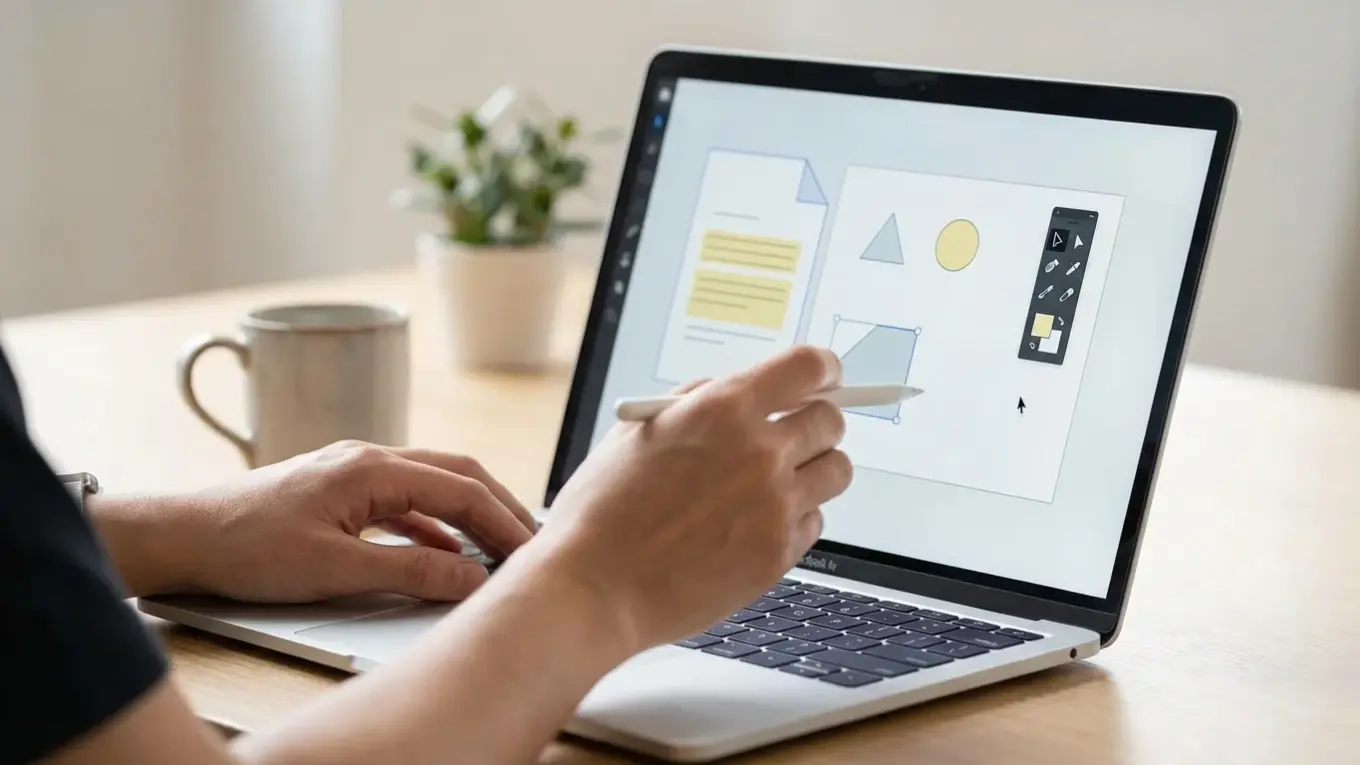
Best PDF Editor for Mac 2026: Text, OCR & Annotations
The best PDF editor for Mac is Readdle PDF Expert, offering a powerful, Mac-native experience for text editing, annotations, and form filling at a reasonable price. For basic tasks like signing and page organization, the free, built-in Apple Preview is often sufficient, though it lacks true text editing and OCR capabilities.
Imagine this scenario: you’ve just received a crucial contract from a client, but their name is misspelled. You need to fix it, sign it, and send it back before the end of the day. You open the file on your Mac, and it launches in Preview. You try to click on the text to correct the typo, but nothing happens. The cursor won’t engage. This is a common challenge Mac users face, finding themselves unable to perform what seems like a simple task on a supposedly editable document.
What is the best free PDF editor for Mac?
The best free PDF editor for Mac is Apple Preview, the application that comes pre-installed with every version of macOS. It’s the default viewer for images and PDF documents, and its capabilities are surprisingly effective for a free tool. While it doesn’t allow you to alter existing text within a PDF, it excels at many other common tasks.
With Preview, you can:
- Annotate and Mark Up: Highlight text, add comments in sticky notes, draw shapes, and use a freehand pen tool. According to Apple’s own documentation, you can annotate PDFs in Preview with a full suite of markup tools.
- Fill and Sign Forms: Easily fill out interactive forms, add text boxes to non-interactive ones, and insert your saved digital signature.
- Organize Pages: Add, delete, and reorder pages by simply dragging and dropping thumbnails in the sidebar. You can also combine multiple PDFs into a single file.
- Basic Image Adjustments: For images within PDFs or standalone image files, you can make simple adjustments to color, size, and rotation.
A common mistake I find is users immediately searching for a paid app without exploring what Preview can already do. For students marking up lecture slides or professionals signing occasional documents, Preview is often all you need. Its main limitation is its inability to perform direct text editing or to use Optical Character Recognition (OCR).
How does Apple Preview compare to dedicated PDF editors?
Apple Preview is a viewer with markup tools, while dedicated PDF editors are full-fledged document manipulation programs. The primary difference lies in the ability to edit the core content of a PDF. Preview lets you add layers on top of the document—like highlights or text boxes—but a dedicated editor allows you to change the original text, replace images, and reflow paragraphs as if it were a word processing file.
Here is a breakdown of the key differences:
| Feature | Apple Preview | Dedicated PDF Editors (e.g., PDF Expert) |
|---|---|---|
| Text Editing | No (you can only add new text boxes) | Yes (edit, delete, and reformat existing text) |
| OCR (Optical Character Recognition) | No (it relies on Live Text for text selection) | Yes (converts scanned images to editable text) |
| Advanced Form Creation | No (you can only fill existing forms) | Yes (create interactive fields, buttons, and menus) |
| File Conversion | Limited (it exports to image formats) | Extensive (exports to Word, Excel, PowerPoint, etc.) |
| Cost | Free | Paid (requires a subscription or one-time fee) |
In practice, what I see most often is that users switch to a dedicated editor when their work involves scanned documents or requires frequent content revisions. Preview is excellent for reviewing and commenting, but not for creating or fundamentally altering a PDF.
What features should I look for in a Mac PDF editor?
When choosing a PDF editor for your Mac, your specific needs should guide your decision. Not everyone requires an expensive suite of professional tools. Focus on the features that will solve your most frequent problems.
Text and Image Editing
This is the most fundamental feature beyond what Preview offers. A good editor should allow you to click on any text block and edit it directly. This includes changing words, correcting typos, and adjusting fonts and sizes. Similarly, you should be able to move, resize, delete, or replace images within the document. If your work involves creating marketing materials or reports, you may also insert complex images. For those, it’s often best to prepare them first with a tool like a free background remover to ensure they blend smoothly into your document layout.
Optical Character Recognition (OCR)
If you work with scanned documents, invoices, or old books, OCR is non-negotiable. This technology scans an image of text and converts it into actual, selectable, and searchable text. A powerful PDF editor with OCR for Mac can turn a flat, dead image of a contract into a fully editable document, saving you hours of retyping.
Annotation and Collaboration Tools
Look for a comprehensive set of markup tools: highlighting, underlining, strikethrough, sticky notes, and drawing tools. For team environments, features like comment threads and status tracking (e.g., accepted, rejected) are valuable. The goal is to provide clear, actionable feedback directly on the document.
File Size Optimization
PDF files, especially those with many high-resolution images, can become very large. This makes them difficult to email or upload. A good editor includes a compression feature to reduce file size without a noticeable loss in quality. This is part of a broader need for bulk image compression for SEO and web performance, as large files slow everything down. An online image compressor can help shrink images before they are even added to a PDF.
Is Adobe Acrobat Pro DC necessary for Mac users?
For most Mac users, Adobe Acrobat Pro DC is not necessary. While it remains the industry-standard powerhouse for PDF manipulation, its feature set is often excessive for everyday tasks, and its subscription model can be costly. It’s an excellent tool for graphic designers, legal professionals, and large enterprises that require advanced features like preflight checks for printing, complex web form creation, and deep integration with Adobe’s Creative Cloud.
Yet, the market is now full of capable Adobe Acrobat Pro DC alternative Mac applications that provide 80% of the functionality for a fraction of the price. Tools like Readdle PDF Expert and Wondershare PDFelement offer effective text editing, OCR, and form-filling capabilities in a more lightweight and user-friendly package. Unless your workflow specifically demands a feature unique to Acrobat, you can save money and system resources by choosing a competitor.
What are the best PDF editors for Mac for specific tasks?
The best editor for you depends entirely on what you do. The Portable Document Format (PDF) is used for everything from simple forms to complex graphic designs, so a one-size-fits-all solution is rare. Here are my top recommendations based on specific use cases.
- Best Overall Experience: Readdle PDF Expert. It strikes the perfect balance between power and simplicity. Its interface is clean and Mac-native, performance is fast even on M-series chips, and it handles text editing, annotations, and signing flawlessly. It’s available as both a subscription and a lifetime license, offering flexibility.
- Best for Power Users & AI Features: Adobe Acrobat Studio. If you need every feature imaginable and work across platforms, Acrobat is still the king. The new Studio version integrates AI for summarizing documents and creating knowledge bases from multiple files. It’s expensive and can feel bloated, but its power is undeniable.
- Best for OCR and Digitizing Documents: ABBYY FineReader PDF. When it comes to OCR accuracy, ABBYY is in a class of its own. It excels at converting complex scanned documents, even those with tables and mixed layouts, into perfectly formatted, editable files.
A small design firm I consulted with was struggling with client feedback. They received scanned, hand-marked sketches as PDFs and spent nearly three hours per project retyping notes and trying to interpret the scribbles. After they switched to ABBYY FineReader, its OCR technology turned those scanned notes into editable text. This led to significant improvements: they cut their document processing time by over 80% and drastically reduced misinterpretations of client feedback.
Choosing the right PDF editor for your Mac is straightforward. Your journey should start with the free tool you already have: Apple Preview. Explore its full capabilities to understand your real needs. When you consistently require features it lacks, like direct text editing or OCR, you can then invest in a dedicated tool. A free trial of an application like PDF Expert will quickly show you the value of a more powerful solution for your specific workflow.
FAQ
Can I edit PDF text directly with Apple Preview?
No, you cannot edit existing text in a PDF using Apple Preview. You can only add new text boxes, shapes, and highlights on top of the document. To change the original text, you need a dedicated PDF editor like PDF Expert or Adobe Acrobat.
What is OCR in a PDF editor and why do I need it?
OCR, or Optical Character Recognition, is a technology that converts images of text (like in a scanned document or a photo) into actual, editable text. You need it if you work with non-digital documents and want to make them searchable, copy text from them, or edit their content without retyping everything.
Do I need a subscription for a good PDF editor on Mac?
Not necessarily. While many top-tier editors like Adobe Acrobat use a subscription model, other excellent options such as Readdle PDF Expert and Wondershare PDFelement offer a one-time purchase for a lifetime license. This can be more cost-effective if you don’t need constant feature updates.
How can I reduce the size of a large PDF file on a Mac?
You can use Apple Preview’s ‘Export’ function and select the ‘Reduce File Size’ Quartz filter, but this can degrade quality. A better option is to use the compression feature built into dedicated PDF editors, which offers more control over the balance between size and quality.
Remove image backgrounds for free