Facebook & Instagram Image Sizes: Fix Cropping Now (2026)
Ever wonder why some social media photos look perfect while others get awkwardly cropped? It all comes down to social media image sizes—the specific dimensions and formats platforms like Instagram and Facebook require. Getting these right means your visuals display perfectly, without any weird blurriness. For instance, a square Instagram post should be 1080×1080 pixels, while a Story needs a totally different 1080×1920 resolution.
Imagine spending hours on a stunning visual for a product launch. You upload it, and poof—your logo is cut in half on Facebook. Or the text becomes a pixelated mess on Instagram. Sound familiar? We’ve all been there. This frustrating experience is super common, but also completely avoidable. Each social network plays by its own rules, and ignoring them can really undermine your brand’s look. Honestly, understanding these dimensions isn’t just a technical chore; it’s a huge part of your visual strategy.
Facebook Image Dimensions: Getting it Right
Facebook is often the first impression you make, so your visual game has to be on point. The platform juggles several different formats for profiles, pages, and posts, and each has its own unique specs. Paying attention to these details is crucial because it stops Facebook from automatically squashing or cropping your visuals in ways you definitely don’t want.
Profile Picture
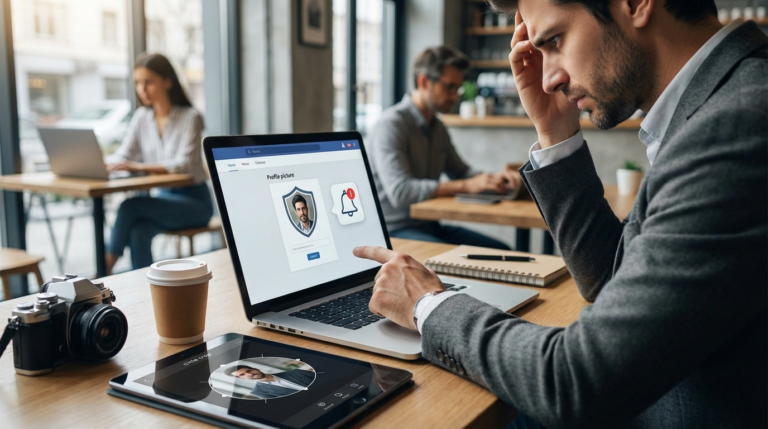
Your profile picture is basically your brand’s face on Facebook. It appears in search results, on your page, and next to every comment or post you make. Since it’s shown as a circle, you have to make sure nothing important gets chopped off in the corners. For a perfect, centered look, I find that using a circle crop tool before uploading makes a huge difference.
- Recommended size: 320 x 320 pixels
- Minimum size: 180 x 180 pixels
- Display size on desktop: 176 x 176 pixels
- Important note: The image is cropped into a circle, so keep your main subject centered.
Cover Photo
The cover photo is that big banner at the top of your page—prime real estate for showing off your brand. But getting the dimensions right can be a headache, mainly because it displays differently on desktop versus mobile.
- Recommended size: 851 x 315 pixels
- Minimum size: 400 x 150 pixels
- Mobile display: 640 x 360 pixels
- File size limit: Under 100 KB
Plus, with that tiny 100 KB file size limit, running your final graphic through an online image compressor is a lifesaver. It helps you meet the requirement without wrecking the quality. Also, don’t forget your profile picture will overlap the cover photo on the left, so keep important stuff out of that zone.
Feed Posts and Shared Links
The visuals you share directly to the feed are the bread and butter of your content strategy. For maximum impact, I’ve found vertical images perform well, as they take up more screen space on mobile phones. When you share a link, Facebook pulls a thumbnail image, which you can customize.
- Recommended size (feed images): 1080 x 1350 pixels (4:5 aspect ratio)
- Recommended size (link images): 1200 x 628 pixels
- Supported formats: JPG, PNG, GIF
Instagram Image Sizes: A Visual-First Approach
Instagram is all about the visuals, right? So quality and dimensions are everything. While the platform supports square, portrait, and landscape formats, its interface really favors vertical content, especially in Stories and Reels. A consistent, well-optimized feed can make a huge difference in how people connect with your posts.
Profile Picture
Similar to Facebook, your Instagram profile picture is a small, circular image that represents your account everywhere on the platform. It should be instantly recognizable. Even though the display size is tiny, uploading a higher-resolution picture ensures it looks sharp on all devices, including high-resolution retina displays. You can find more details in our complete guide to Instagram profile picture size.
- Recommended size: 320 x 320 pixels
- Display size: 110 x 110 pixels
- Aspect ratio: 1:1
Feed Photos (Square, Portrait, Landscape)
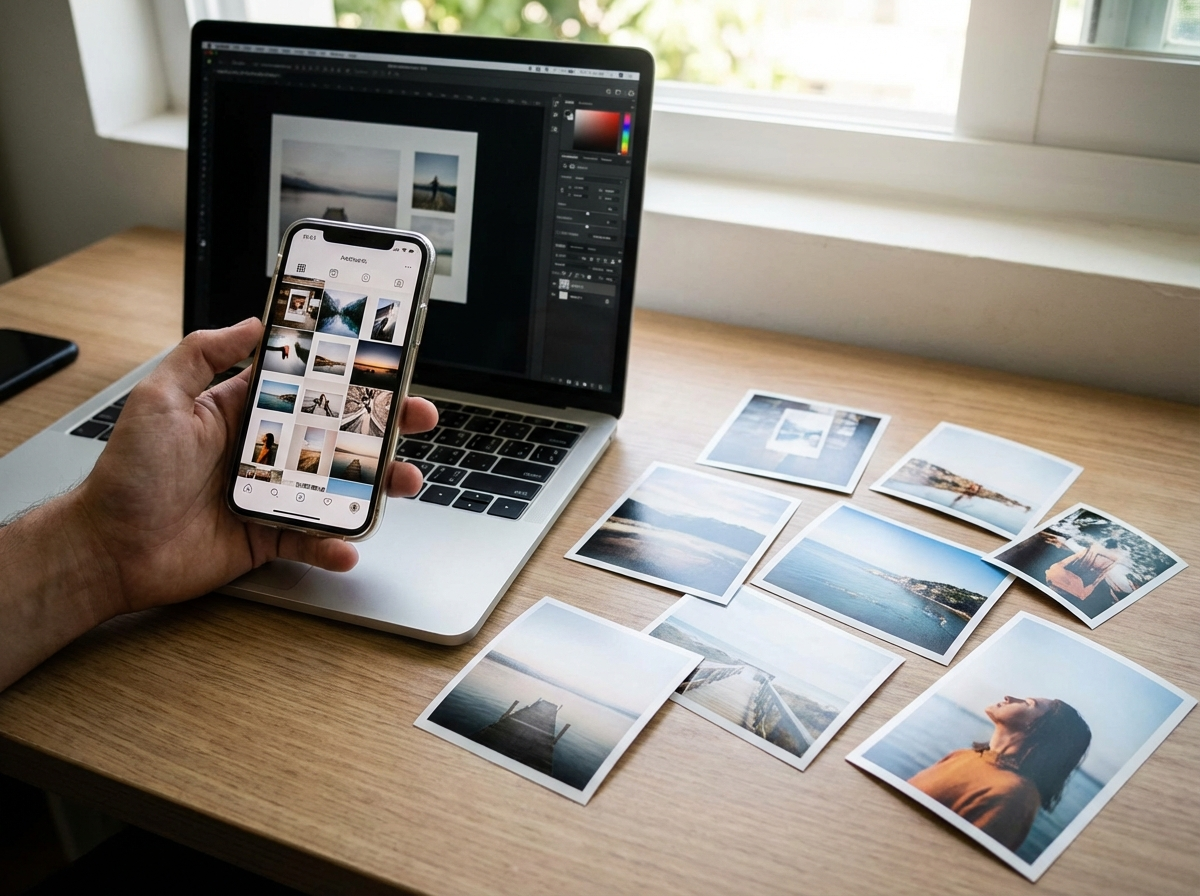
Instagram may have started with its classic square format, but now you have more options. In my experience, portrait photos (4:5 aspect ratio) work best because they take up more screen real estate as people scroll. It just grabs more attention. Whatever you choose, though, stick to a width of 1080 pixels to keep things looking sharp.
- Square: 1080 x 1080 pixels (1:1 ratio)
- Portrait: 1080 x 1350 pixels (4:5 ratio)
- Landscape: 1080 x 566 pixels (1.91:1 ratio)
Stories and Reels
Instagram Stories and Reels are built for a full-screen, vertical experience. You should always create content specifically for this 9:16 aspect ratio. If you upload a horizontal photo, for example, it will appear with large, distracting borders at the top and bottom. Keep text and other key elements away from the very top and bottom, since the interface overlays can cover them.
- Recommended size: 1080 x 1920 pixels
- Aspect ratio: 9:16
LinkedIn Image Specs for a Professional Look
On LinkedIn, your pictures are a direct reflection of your professional brand. Think about it: a blurry or badly cropped photo can leave a poor impression on recruiters, clients, or partners. Luckily, the platform’s requirements are pretty straightforward, mostly covering personal profiles and company pages.
Personal Profile Picture
Your LinkedIn profile picture is your professional headshot. It should be a clear, high-quality photo of you. Like other platforms, it is displayed in a circle. Try to avoid busy backgrounds and make sure your face is clearly visible. This is a great place to get inspiration from these profile picture ideas for professionals.
- Recommended size: 400 x 400 pixels
- Maximum file size: 8 MB
- Supported formats: JPG, PNG
Personal Background Banner
The background banner on your personal profile is a great opportunity to add personality and context. You can use it to showcase your work, highlight an achievement, or feature your company’s branding. It’s a wide, panoramic space, so choose your visual carefully.
- Recommended size: 1584 x 396 pixels
- Aspect ratio: 4:1
- Maximum file size: 8 MB
Company Page Logo and Cover Image
For a company page, you need two key visuals: the logo and a cover image. The logo appears next to your company’s name in posts and search results. The cover image functions much like the personal banner, giving you a large s for branding.
- Company Logo: 400 x 400 pixels
- Company Cover Image: 1128 x 191 pixels
General Best Practices for Social Media Images
Okay, beyond the exact numbers, a few universal rules will help you keep your visuals top-notch everywhere. These habits save time and make sure your brand looks polished and consistent, no matter where you post.
Always start with the highest-resolution file you have. Why? Because it’s much easier to scale down than to scale up without losing quality. A small file that’s been enlarged just looks pixelated and blurry. It’s also smart to know your file formats. A PNG is perfect for graphics with text or logos since it keeps lines sharp and supports transparent backgrounds. Meanwhile, a JPG is usually better for photographs because it handles complex colors in a smaller file size.
Another helpful practice is to create templates for your most common post types. For instance, if you frequently post quotes on Instagram Stories, create a master file in a design program set to 1080 x 1920 pixels. This simple step streamlines your workflow and guarantees that every post is perfectly sized from the start. Consistency is just so important for building a recognizable brand.
Look, getting social media image sizes right isn’t about memorizing a bunch of numbers. It’s about building a simple workflow that puts the correct dimensions first, right from the start. So, what’s next? I’d suggest taking a quick look at your main social media profiles. Does your profile picture and cover photo match the specs we talked about? If not, a quick update can make a big difference. Go ahead and bookmark this guide—it’ll be here when you need to make sure your next post is sharp, professional, and perfectly framed.
FAQ
What if my picture is too big for social media?
If your picture’s dimensions or file size are too big, the platform will automatically shrink or compress it. This usually means a major drop in quality, leaving your visual looking blurry or pixelated.
JPG or PNG: which is better for social media?
Go with JPG for regular photos, since it gives you a good balance of quality and small file size. For graphics with text, logos, or a transparent background, PNG is your best bet because it keeps details sharp.
How do I check my image’s dimensions?
On a Windows PC, right-click the file, go to ‘Properties,’ and then the ‘Details’ tab. On a Mac, right-click the file and select ‘Get Info.’ Both ways will show you the image’s dimensions in pixels.
Why does my cover photo look weird on my phone?
Because cover photos use different aspect ratios on desktop and mobile. Desktops show a wide view, while phones display a taller, more centered crop of that same picture. My advice? Always design for mobile first, keeping the most important stuff right in the middle.
Crop images into a circle for free