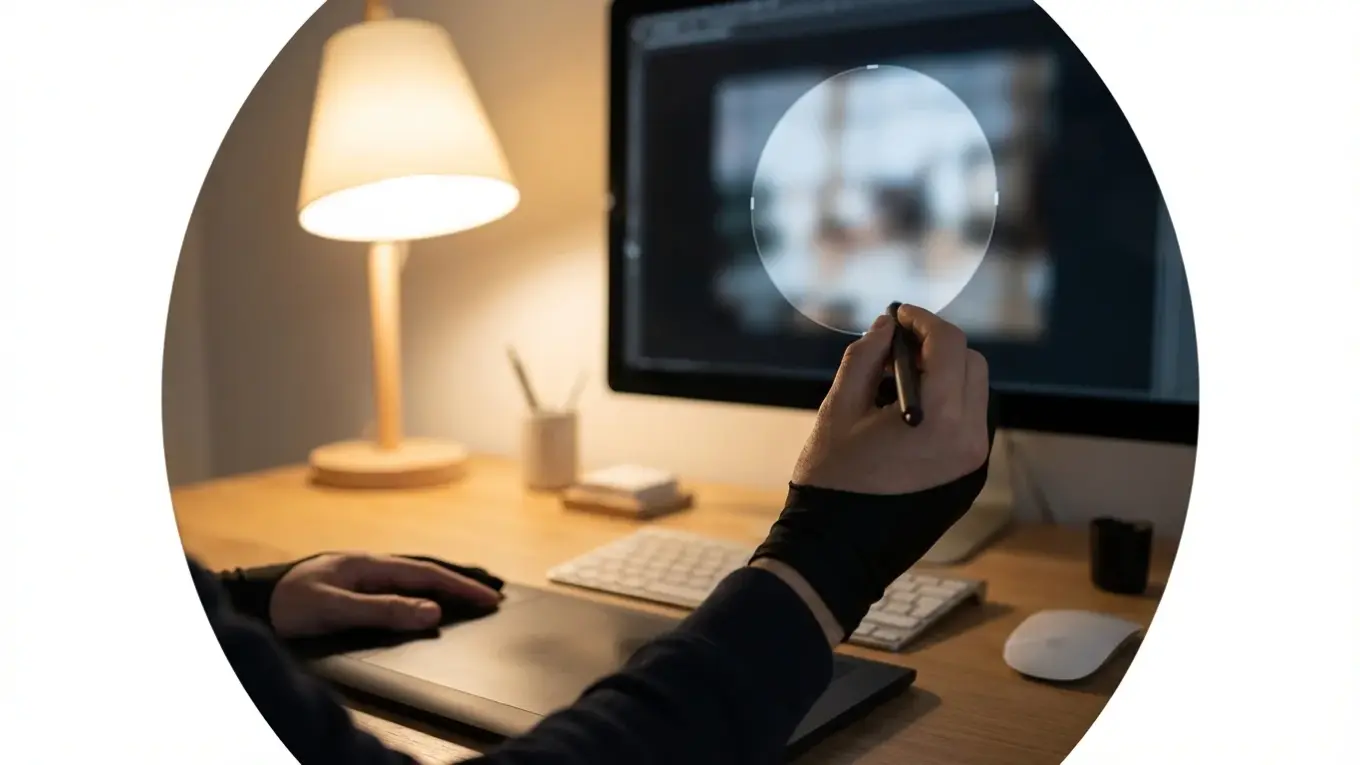
How to Circle Crop an Image Online for Free (Simple Guide)
To circle crop an image online, use a free tool that allows you to upload your picture, adjust a circular frame over the subject, and download the result. This process is typically instant and lets you save the final image as a PNG file with a transparent background, which is ideal for profile pictures or logos.
You have the perfect headshot, but every time you upload it to a social media platform, the automatic circular frame cuts off your hair or zooms in too close to your face. It’s a common frustration that makes a professional photo look awkward. Manually editing it in complex software takes time you don’t have, and the results are often jagged or poorly centered. You just need a quick, clean way to create a perfect circular version of your image.
Fortunately, you don’t need to be a graphic designer to solve this. Modern web tools make it simple to round crop an image in seconds, giving you full control over the final look. Whether it’s for a LinkedIn profile, a brand logo, or a creative design element, mastering the circular crop is a simple skill that significantly improves your visual presentation online.
How do you crop an image into a perfect circle online?
You can crop an image into a circle by using a dedicated online tool that automates the process. These tools provide a circular overlay that you can position and resize over your photo, ensuring a perfect cut without needing any technical skills. The entire process usually takes less than a minute. The process involves three simple steps:
- Upload Your Image: Start by selecting the square or rectangular photo you want to edit. Most online tools support common formats like JPG, PNG, and WebP. Simply drag and drop your file or select it from your computer.
- Adjust the Crop Area: Once uploaded, a circular frame will appear over your image. You can drag this circle to reposition it over the most important part of the photo, like a person’s face. You can also adjust the handles to make the circle larger or smaller to frame your subject perfectly.
- Download the Result: After you’ve positioned the circle exactly where you want it, click the download button. For the best results, save the image as a PNG file. This format supports transparency, meaning everything outside the circle will be removed, leaving you with a clean, round image ready to be used anywhere.
This method is a practical application of the core principles of image editing, simplified for everyday use. Instead of manually selecting and masking, the tool handles the technical work for you. From my experience, using a dedicated circle crop tool is far more efficient than trying to achieve the same effect in a general-purpose photo editor.
Why choose a circular crop for your images?
A circular crop is chosen primarily because it draws the viewer’s eye directly to the center of the image, creating a natural focal point. Unlike squares with sharp corners, circles feel softer, more organic, and complete, which can make a portrait or logo seem more approachable and friendly. This psychological effect is why so many social platforms have adopted it for profile pictures.
The most common use is for profile pictures, or PFPs. Platforms like Instagram, LinkedIn, X (formerly Twitter), and TikTok all display user avatars in a circular frame. By pre-cropping your image into a circle, you ensure that your photo appears exactly as you intend, with no awkward automatic cropping. It gives you control over the composition, which is a key part of maintaining a professional online presence. I’ve often advised clients that taking a few seconds to perfect their LinkedIn profile photo with a proper crop is a small investment with a big return.
Beyond profiles, circular images are great for branding and design. A circular logo often feels modern and contained, fitting neatly into website headers and marketing materials. For e-commerce stores, a circular crop can be used to create eye-catching badges for sales or new products. It can also be used to create vignettes, highlighting a specific detail of a product photo to break the monotony of a standard grid layout.

What are the best practices for achieving a professional circular crop?
To achieve a professional-looking circular crop, you should focus on composition, ensuring the subject is well-centered and has enough space around it. A crop that is too tight can feel claustrophobic, while an off-center subject looks unbalanced and amateurish. The goal is to create a visually pleasing image that guides the viewer’s attention smoothly. Here are a few best practices I’ve learned over the years:
- Give Your Subject Breathing Room: When positioning the circle, don’t place the edges right against your subject’s head or chin. Leave a small, consistent margin of space around the focal point. This negative space helps frame the subject properly.
- Center the Eyes: For headshots, try to position the person’s eyes slightly above the horizontal centerline of the circle. This often creates a more engaging and natural-looking portrait.
- Mind the Background: A simple, uncluttered background works best. A busy or distracting background will compete with your subject for attention. If your background is messy, consider removing it before you crop.
- Start with High Resolution: Always use a high-quality source image. Cropping permanently removes pixels, so starting with a high-quality photo ensures your final circular image won’t look blurry or pixelated.
On websites, this circular effect is often achieved without permanently altering the image file. Developers use a CSS clip-path property to mask a square image into a circle shape directly in the browser. This is a flexible technique, but for uploading to platforms where you don’t control the code, providing a pre-cropped PNG is the only way to guarantee the result.
How can circular images enhance your social media profiles and product photos?
Circular images enhance social media profiles by creating a consistent and recognizable visual identity that stands out in crowded feeds. Because most platforms use circular avatars, a well-composed PFP acts as your digital signature. When users see your polished, circular photo next to a comment or post, it reinforces brand recognition and conveys professionalism, making your content more trustworthy.
For product photography, circular crops offer a creative way to break the visual monotony of standard square and rectangular grids. On a product listing page, for example, every item is usually shown in the same boxy format. Introducing a circular image as a secondary thumbnail or a special badge immediately draws attention. It signals that something is different or special about that product.
I worked with an online store that sold artisanal chocolates. Their main product photos were standard squares, but they struggled to show the intricate designs on individual pieces. They started using a circular crop to create close-up shots of the detailed chocolate tops, which they used as hover-effect images on their category pages. When a user moved their mouse over a product, the square box would reveal a beautiful circular detail shot. This simple change made the shopping experience more interactive and elegant, leading to a measurable uptick in clicks on their most detailed products.

Can you add effects or remove backgrounds from circle-cropped images?
Yes, you can combine a circular crop with other edits like background removal and effects, but the order of operations matters. For the cleanest results, you should always remove the background from your original, un-cropped image first. Once you have a subject on a transparent background, you can then apply the circular crop to get perfect edges. Here’s a workflow I always recommend to clients:
- Start with Background Removal: Upload your original square or rectangular image to a free background remover. This isolates your subject and saves it as a PNG with a transparent background. This step is important because it’s much easier for an AI to detect the edges of a subject in a full frame than in a pre-cropped circle.
- Perform the Circular Crop: Take your new transparent PNG and upload it to a circle cropper. Now, when you position the circle, you’re only focused on framing the subject without worrying about a distracting background.
- Add Your Effects: With your circular, transparent image, you can now place it onto any new background, add a colored border, apply a drop shadow, or layer it into another design. This layering technique gives you complete creative freedom.
Images with clean, transparent backgrounds are significantly more versatile for any design project. Removing the background first is a non-negotiable step for professional-quality graphics.
One mistake I keep seeing is people trying to reverse this order—cropping first and then attempting to remove the background. This almost always leaves behind awkward remnants of the old background near the circular edge and results in a messy, unprofessional final image. Get the background out of the way first, and the rest of the process will be much smoother.
Creating a perfectly round crop of your image is no longer a task reserved for design professionals. With the right online tool, you can transform any square photo into a polished circular version in just a few clicks. It’s a small change that can make a big difference in how you or your brand is perceived online. The next time you need a new profile picture or a unique design element, try starting with a circular crop.
To expand semantic coverage and answer closely related search intent, also address terms such as “circle crop image online free”, “round crop image” and “how to crop a photo in a circle”.
For a practical option in this area, try Araluma Blog for image editing tools and tutorials for social media and e-commerce.
FAQ
How do I make a circle profile picture without losing quality?
To avoid quality loss, start with a high-resolution source image (at least 1080×1080 pixels). When you download the cropped circle image, always choose the PNG format, as it uses lossless compression and preserves image detail better than JPG.
Can I crop an image into a circle on my phone?
Yes, you can easily crop an image into a circle on your phone. Most online circle cropping tools are mobile-friendly and work directly in your web browser, so you don’t need to download a separate app. The process of uploading, adjusting, and downloading is the same as on a desktop.
What’s the best format for a circular image with a transparent background?
The best and most widely supported format for a circular image with a transparent background is PNG (Portable Network Graphics). JPG does not support transparency and will add a solid white or black background to your cropped image.
How can I put a border around my circle-cropped image?
Some online image editors allow you to add a border or frame after cropping. If your tool doesn’t have this feature, you can upload your circle-cropped PNG into a more comprehensive design tool and place a circular shape or stroke behind it to create a border.
Crop images into a circle for free