How to Create a Teams Avatar from a Photo (2026 Guide)
To create a Teams avatar from a photo, open the Avatars app in Microsoft Teams, select ‘Create from photo,’ and upload a well-lit headshot. The app generates three avatar options based on your image, which you can then customize. This feature provides a more realistic representation for virtual meetings.
You’re in back-to-back video calls, and camera fatigue is real. You want a professional presence without having to be live on screen for hours. While the standard cartoonish avatars are an option, they often feel generic and impersonal. Microsoft Teams now allows you to generate a more personalized avatar directly from a photograph, offering a middle ground that combines professionalism with a touch of personal identity.
How do you create a Teams avatar from your photo?
You can create a Microsoft Teams avatar from a photo directly within the Avatars app. The process involves uploading an image and letting the software generate a digital version of you. It’s a straightforward feature designed to give you a more personalized stand-in for meetings. I’ve found this method produces a much better starting point than building an avatar from scratch, even if it requires a few tweaks afterward.
The process involves a few simple steps. First, open Microsoft Teams and find the ‘Avatars’ app from the left-hand menu. If it’s not there, you may need to search for it under ‘Apps’. Once inside, you’ll see your existing avatars or a prompt to create a new one. Click the plus (+) icon to start, and you’ll be given two choices: ‘Create from scratch’ or ‘Create from photo’. Select the photo option. You can then either upload a picture from your computer or take a new one with your webcam.
After you’ve selected your photo, Teams will analyze it and generate three different avatar options for you to choose from. Pick the one that looks closest to you. Don’t worry if it’s not perfect yet; the next step is customization. You can adjust everything from hair color and style to clothing and accessories to fine-tune the look. When you’re satisfied, save the avatar, and it will be available for you to use in your next meeting. The official steps are outlined in Microsoft’s guide on how to join a meeting as an avatar.
What are the best practices for a professional Teams avatar photo?
The best photo for a Teams avatar is a clear, well-lit headshot with a neutral background. Think of it as the foundation; the better the input image, the more accurate the resulting avatar will be. The AI uses the biometric data from your photo, so clarity and good lighting are non-negotiable for getting a result that actually looks like you. One mistake I keep seeing is people using casual, poorly-lit selfies, which almost always leads to a disappointing and inaccurate avatar.
To ensure a professional result, follow a few key guidelines. First, use soft, even lighting that illuminates your face from the front, avoiding harsh shadows. A simple ring light or sitting in front of a window works wonders. Second, choose a simple, uncluttered background. A plain wall is much better than a busy room. Your expression should be neutral or a slight, professional smile—just as you would for a corporate headshot. These principles are very similar to the ones outlined in these tips for a perfect LinkedIn profile photo, since the goal is to project a professional image.
How do you prepare your photo for a Teams avatar?
Preparing your photo before uploading it can significantly improve the quality of your avatar. Simple edits like cropping, removing the background, and checking the file size ensure the AI has the best possible source material to work with. This pre-processing step takes only a minute or two but can make the difference between a generic character and a recognizable digital version of you.
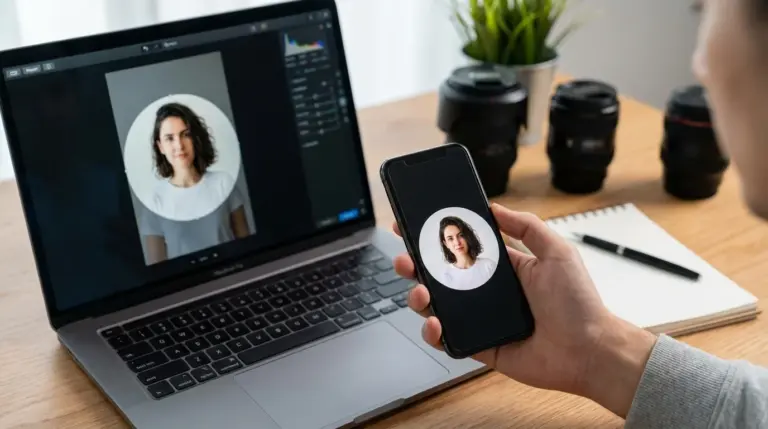
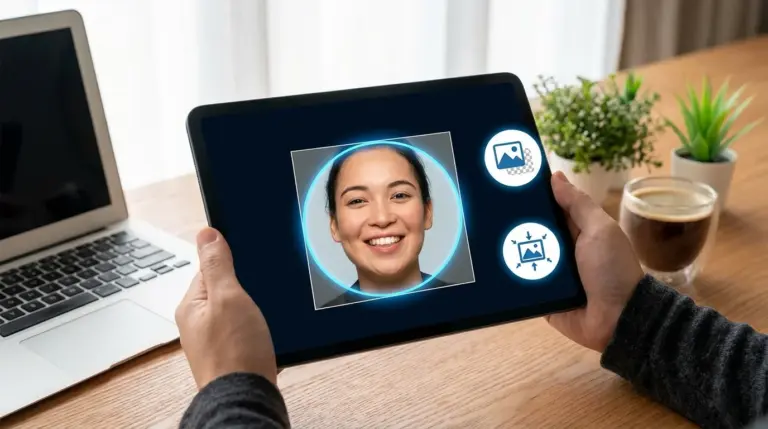
First, focus on framing. The AI needs a clear view of your facial features. I’ve learned the hard way that a full-body shot or a photo where your face is small will produce a poor result. To fix this, you should crop the image to be a headshot. A free circle crop tool is perfect for this, as it helps you center your face and remove distracting peripheral elements, which is exactly how profile pictures are often displayed anyway. This helps you meet the core requirements by focusing the AI’s attention where it matters.
Next, consider the background. Even with good lighting, a busy background can confuse the AI. To avoid this, I recommend using a free background remover to create a clean, neutral backdrop. This isolates your head and shoulders, giving the software a much clearer silhouette to analyze. A marketing consultant I work with was frustrated because her avatar looked nothing like her. Her original photo had a cluttered office behind her. Once she removed the background and re-uploaded the clean image, the new avatar was a striking improvement, giving her the confidence to use it in client meetings.
Can you create a Teams avatar from a live camera?
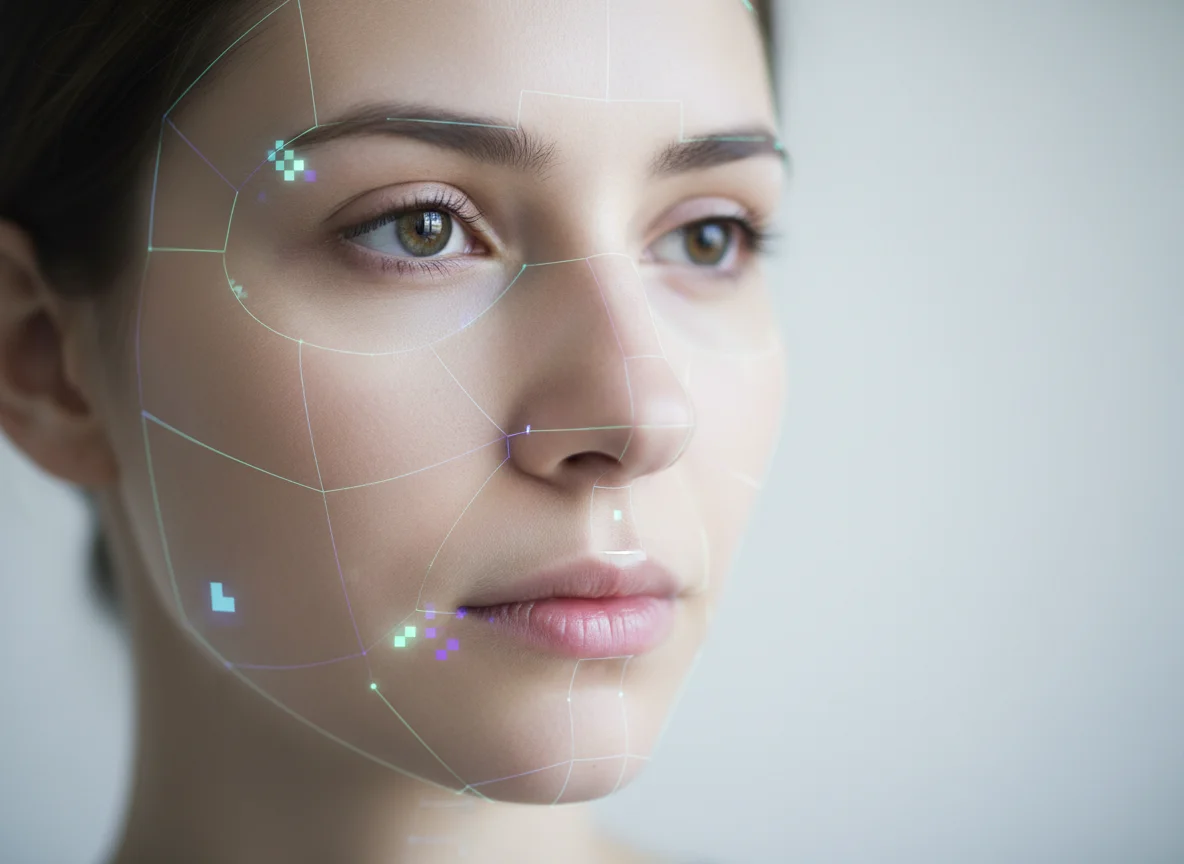
Yes, you can create a Teams avatar using your computer’s live camera instead of uploading a pre-existing photo. When you choose the ‘Create from photo’ option in the Avatars app, Teams gives you the choice to either upload a file or ‘Take a photo’ on the spot. This is a convenient alternative if you don’t have a suitable headshot saved on your device.
While the live camera option is quick, it often yields less accurate results than a carefully prepared photo. The main challenge is controlling the environment in real-time. Your office lighting might not be ideal, and it can be difficult to position yourself perfectly for a good headshot. I’ll be honest: when I tried this approach, the results were noticeably worse than when I used a headshot I had already edited. The lighting was uneven, which resulted in an avatar with strange shadows and a slightly skewed facial structure. For the best outcome, I always recommend taking a few minutes to prepare and upload a high-quality image instead.
How do you troubleshoot common Teams avatar creation issues?
The most common issues when you create a Teams avatar from a photo are inaccurate results, the photo failing to upload, or the Avatars app being unavailable. Most of these problems can be solved by either improving your source image or checking your Teams settings. It’s rare for the feature to be completely broken; usually, a small adjustment is all that’s needed.
If your avatar doesn’t look like you, the first step is to revisit your source photo. Ensure it’s a high-quality, well-lit headshot with a clean background. If the photo is already good, remember that the AI provides a starting point. Use the customization tools to manually adjust features like hair color, skin tone, and face shape to get a closer match. If your photo upload fails, check two things: the file format (it must be JPEG, PNG, or BMP) and the file size (it must be under 10 MB). If the Avatars app itself is missing, it’s likely that your organization’s IT administrator has disabled it. You can refer them to Microsoft’s documentation on how to manage the Avatars app for Microsoft Teams to request access.
Creating a more realistic and professional avatar in Teams is a great way to maintain your presence in meetings without constant camera pressure. The key isn’t just the feature itself, but the quality of the photo you provide. Before you start, take a minute to choose a great headshot, use a simple online tool to crop it and clean up the background, and then upload it to Teams. You’ll get a much better result from the start.
FAQ
How long does it take to generate a Teams avatar from a photo?
The generation process is quite fast. After you upload your photo, Microsoft Teams typically takes less than a minute to analyze the image and present you with three avatar options to choose from.
Can I have more than one avatar in Microsoft Teams?
Yes, you can create and save up to three different avatars in your Teams profile. This allows you to have different looks for different types of meetings, such as a formal business avatar and a more casual one.
Does the Teams avatar from photo feature cost extra?
No, the Mesh Avatars feature, including creation from a photo, is included in most Microsoft 365 and Office 365 business and enterprise plans, such as Business Standard, E3, and E5. It is not exclusive to Teams Premium.
What’s the best file format for my Teams avatar photo?
For the best balance of quality and compatibility, use a high-quality JPEG or PNG file. Both formats are widely supported and can preserve the detail needed for the AI to create an accurate avatar.
Crop images into a circle for free