How to Resize Multi-Column Photos on Shopify Without Cropping
To resize multi-column photos in Shopify, the most reliable method is to resize your images externally to a uniform square dimension, such as 300×300 pixels, before uploading. Then, in the multi-column section settings, set the image ratio to ‘Adapt to image’ to prevent automatic cropping by the theme.
Imagine this scenario: you’ve just migrated your online store to Shopify. Everything is looking great, except for one frustrating detail. The ‘Multicolumn’ section you’re using to showcase your corporate partners is cropping their logos awkwardly. You’ve tried every built-in setting, especially the promising ‘Adapt to image’ option, but nothing works. The logos still look unprofessional, with edges cut off. This is a common hurdle for many store owners, but the solution is simpler than editing theme code.
What Are Shopify Multi-Column Sections and How Do They Use Images?
A Shopify multi-column section is a layout element used to display content in several vertical columns, typically for showcasing products, features, testimonials, or partner logos. This format helps break up text and present information in a visually organized way. Each column can contain an image, a heading, and a block of text, creating a clean, grid-like appearance on the page.
The challenge with images in this section is that most Shopify themes are designed to enforce uniformity. To keep all columns aligned and symmetrical, the theme often forces images into a predefined container size and aspect ratio. If you upload an image that doesn’t fit these dimensions—for example, a rectangular logo into a square space—the theme will automatically crop it to fit. This is why logos and photos frequently appear with parts missing, even when they look perfect on your computer.
How to Adjust Image Ratio in Shopify Multi-Column Sections?
You can adjust the image ratio directly within your Shopify theme editor, though its effectiveness can vary. This setting is located in the main settings for the ‘Multicolumn’ section, not within the individual column blocks. To find it, navigate to the page with your multi-column section, open the theme editor, and click on the ‘Multicolumn’ section in the left-hand panel. You will typically see an ‘Image ratio’ dropdown menu.
The options usually include:
- Portrait: Crops images into a vertical orientation.
- Square: Crops images into a 1:1 aspect ratio.
- Adapt to image: This setting is designed to display the image in its original aspect ratio without cropping. In practice, what I see most often is that this option still struggles if the images within the same section have different dimensions, as the theme will try to equalize the column heights, leading to unexpected cropping.
While ‘Adapt to image’ is the logical choice, it doesn’t always solve the problem if the source images are not already consistently sized.
Step-by-Step Guide to Resizing Multi-Column Images on Shopify
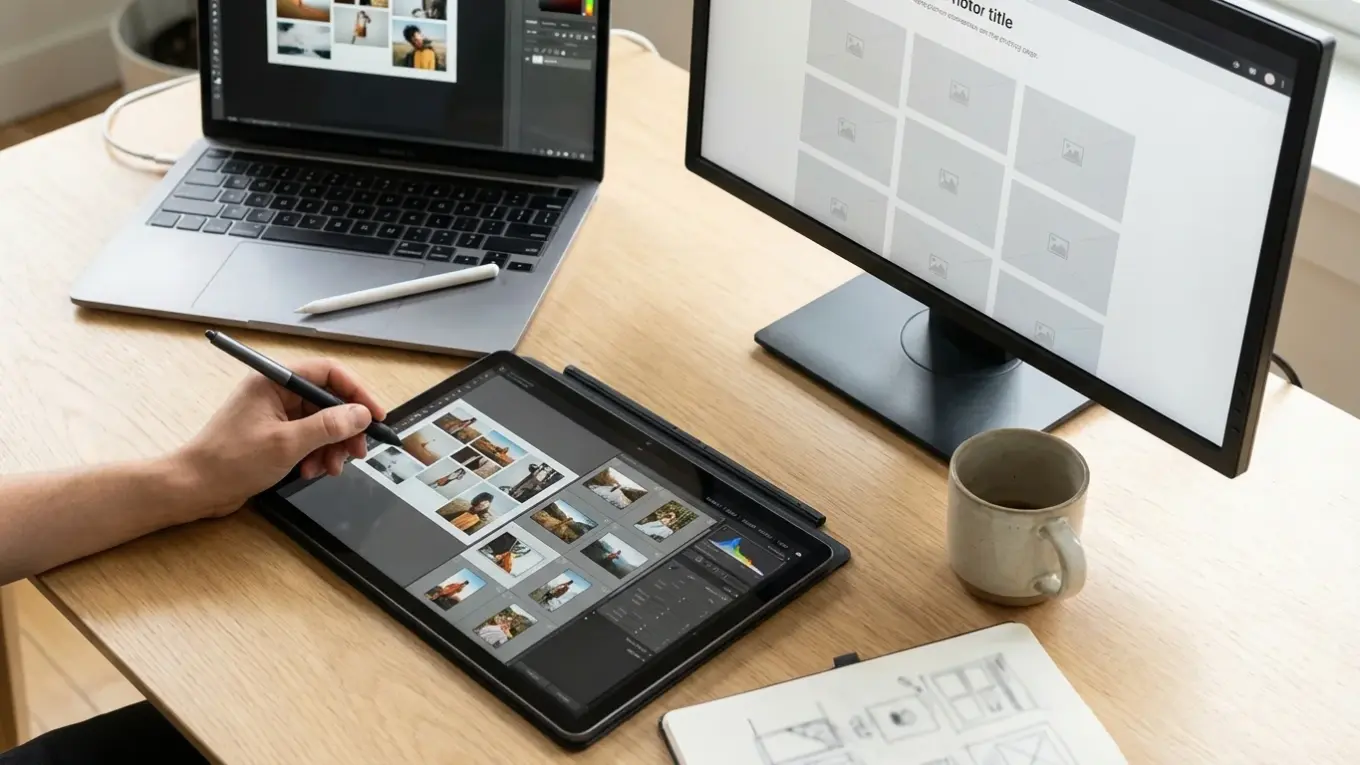
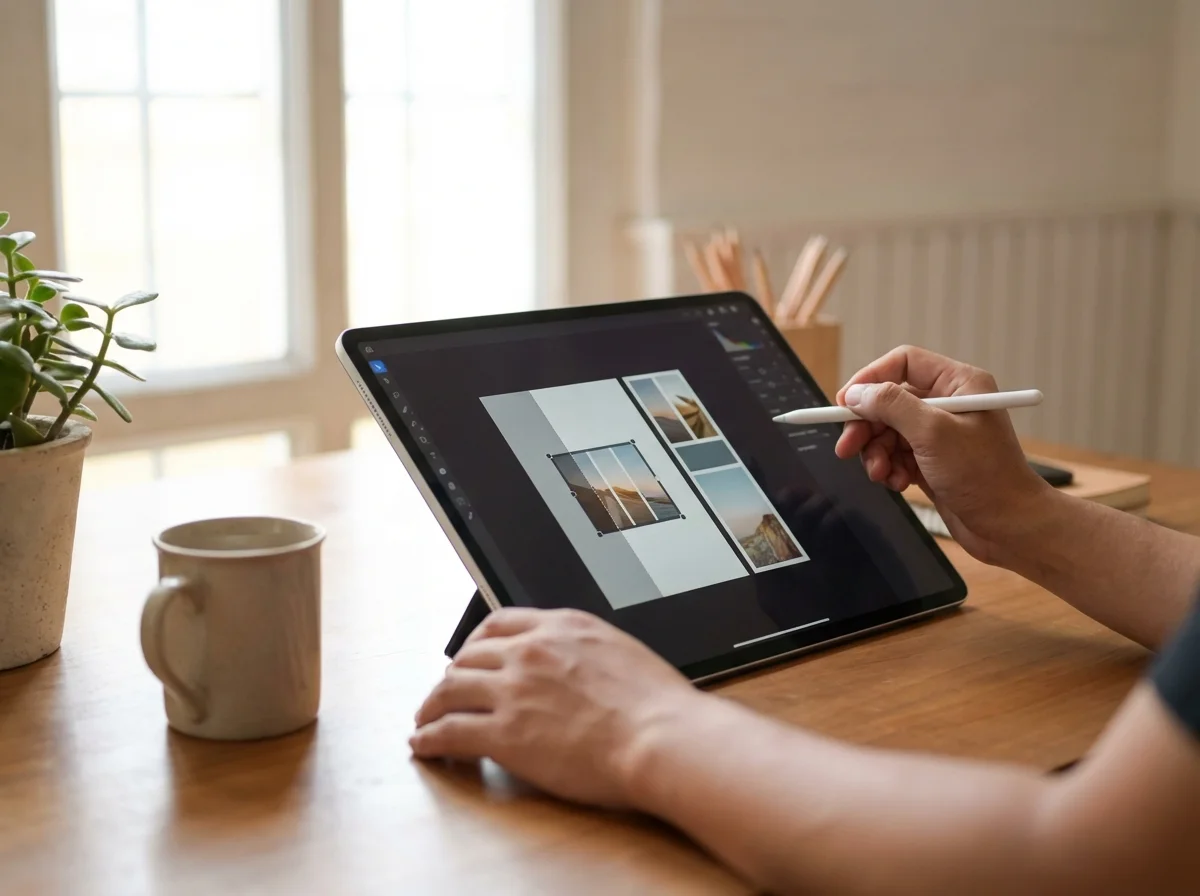
When Shopify’s built-in settings fall short, the most effective solution is to prepare your images before you upload them. This manual approach gives you full control over the final appearance and ensures every image displays perfectly. A common mistake I find is relying solely on the theme to handle image sizing, which leads to unpredictable results.
Here’s the process that works every time:
- Define a Uniform Size: Decide on a consistent dimension for all images in the section. A square aspect ratio, like 300×300 pixels or 500×500 pixels, is a safe and professional choice for logos.
- Prepare Your Images: If your logos have distracting backgrounds, you can use a free background remover to make them transparent before resizing. This gives them a clean, floating look on your site.
- Resize Externally: Use any basic image editing software or a free online tool to resize each image to your chosen dimensions. Ensure you save them with a new file name to avoid confusion.
- Upload to Shopify: Go back to your ‘Multicolumn’ section in the Shopify editor. Remove the old, cropped images from each column and upload your newly resized versions.
- Confirm Your Settings: Make sure the ‘Image ratio’ in the section settings is set to ‘Adapt to image’. With your images already perfectly sized, this setting will now work as intended, displaying them without any cropping.
Consider the case of a new online cookie business that moved from a different platform to Shopify. They wanted to display the logos of their five corporate partners in a multi-column row. But every logo they uploaded was oddly cropped. After failing to fix it with theme settings, they took a different approach. They resized each partner logo to a perfect 300×300 pixel square. The result was surprising: after re-uploading, the logos appeared sharp, complete, and perfectly aligned, instantly boosting the site’s professional look.
Troubleshooting Common Shopify Multi-Column Image Resizing Issues
Even after resizing, you might encounter a few minor issues. Here are solutions to the most common problems related to multicolumn image resizing on Shopify.
- Images Appear Blurry: If your images look pixelated after resizing, it’s likely your original source file was too small. Always start with the highest-resolution version of the image you have. It’s better to scale a large image down than to scale a small one up.
- Columns Have Uneven Heights: This happens if your images are not exactly the same dimensions. Even a few pixels of difference can throw off the layout. Double-check that every image was exported at the exact same width and height (e.g., all are 300×300, not 300×301).
- The Page Loads Slowly: Large, high-resolution images can slow down your website, which harms user experience and SEO. After resizing, you should always compress your images. You can use an online image compressor to significantly reduce the file size without sacrificing visual quality. This aligns with standard image optimization best practices for web performance. For stores with many images, learning about bulk image compression for SEO can be a major advantage.
Fixing cropped images in Shopify’s multi-column section doesn’t require complex coding or fighting with theme settings. The most direct path to a clean, professional look is to take control by resizing your images to a consistent, square dimension before you upload them. Open an image editor now, resize one of your partner logos to 300×300 pixels, and upload it to see the immediate difference it makes.
FAQ
What is the best Shopify multi-column image size?
A square aspect ratio is the safest and most common choice for consistency. Dimensions like 300×300 pixels or 500×500 pixels work well for logos and icons, ensuring they align perfectly across all columns.
Why does Shopify’s ‘Adapt to image’ setting not always work?
The ‘Adapt to image’ setting tries to fit your image within the column’s container. If your images have widely different aspect ratios, the theme may still crop them to maintain a uniform height and prevent a messy layout.
Can I resize images directly within the Shopify admin?
Shopify offers a basic image editor that allows for cropping, rotating, and drawing. However, it does not provide precise pixel-based resizing to specific dimensions, which is why using an external tool is necessary for this particular task.
Compress images without losing quality