How to Write Image Alt Text for SEO & Accessibility
Let’s be honest, image alt text is one of those things we often forget. It’s a short, written description of a picture that you add to your site’s code. This description helps screen-reading tools explain visuals to visually impaired users and allows search engines to understand your content. Good alt text makes your website more accessible and can even improve your SEO.
You’ve spent hours perfecting the product photos for your online store, but they aren’t bringing in traffic from Google Images. Or maybe you’ve heard that your site is tough to navigate for people with visual impairments. In both cases, the problem often points to missing or poorly written alt text. This small detail has a huge impact on both user experience and search engine visibility, yet it’s so often overlooked.
What Alt Text Is and Why It Matters
Alternative text, usually called alt text or an alt attribute, is an HTML attribute applied to image tags. Its main purpose is to provide a textual alternative for visual content, and this text serves three key functions:
- Accessibility: For individuals using screen readers, alt text is crucial. The software reads the description aloud, allowing users with visual impairments to understand the content and context of a photo they cannot see.
- Image SEO: Search engines like Google can’t “see” pictures the way we do. They rely on alt text to understand what a graphic depicts, which helps them index it correctly and show it in relevant image search results. This is a big part of effective image SEO.
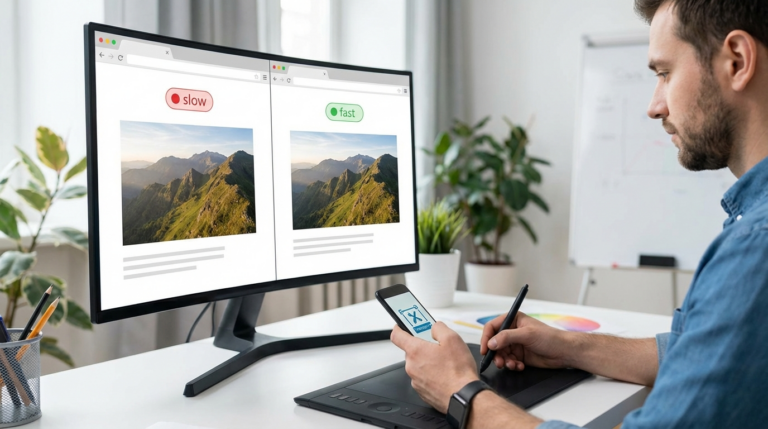
- Broken Images: If a visual fails to load on a webpage because of a slow connection or an error, the browser will display the alt text instead. This ensures the visitor still gets the information the picture was meant to convey.
Without proper alt text, you’re creating a frustrating experience for a segment of your audience and missing out on valuable organic traffic. It’s a foundational piece of any well-built, inclusive website. Simple as that.
How to Write Alt Text for Informative Images
So, what counts as an ‘informative’ image? Basically, it’s any visual that adds to the context or understanding of your content. If removing the picture would make the page harder to comprehend, it’s informative. Writing good alt text for these visuals requires you to be descriptive but concise.
Your goal is to convey the same information as the photo. While a good rule of thumb is to keep it under about 125 characters, that’s more of a guideline than a hard rule. Clarity is what really matters. Plus, you have to consider the context in which the image appears. For example, imagine you’re selling a watch on your e-commerce site.
- On a product grid page: A simple, direct description is best.
- In a blog post about watch movements: The focus changes. A better description would be:
See how the second example focuses on the details relevant to the article’s topic? You should always think about what information the visual is trying to communicate to the reader. Your alt text should be the answer to that question.

Handling Decorative Images: The Empty Alt Attribute
Now, what about visuals that are just there to look pretty? Think background textures, stylistic borders, or abstract shapes used as page dividers. These are decorative images, and for them, you should use an empty alt attribute.
This is done by setting the attribute but leaving the description empty, like this: . It looks simple, but it’s important. When a screen reader encounters a picture with an empty alt attribute, it knows the visual is decorative and will skip over it entirely. This creates a much smoother experience for the user, as they aren’t interrupted by announcements for non-essential graphics.
What you must avoid is omitting the alt attribute altogether. If an image tag has no alt attribute, many screen readers will instead read the image’s file name aloud. Hearing “divider-line-final-v2.png” is confusing and unhelpful. An empty alt attribute signals you did it on purpose; a missing one just looks like a mistake.
Alt Text for Functional Images Like Links and Buttons
A functional image is one that performs an action, such as a clickable logo, an icon in a button, or a linked product photo. For these images, the alt text should describe the action or destination, not the visual itself. After all, the visitor needs to know what will happen when they click it.
Here are two common scenarios:
- A logo linking to the homepage: The alt text shouldn’t be “Company Logo.” Instead, it should be “Company Name homepage.” This tells the user exactly where the link will take them.
- An icon used as a button: If you use a magnifying glass icon for a search button, its alt text should be “Search,” not “Magnifying glass.” Similarly, a shopping cart icon should have alt text like “View your shopping cart.”
But what if an image is inside a link that already has text? For instance, if you have a link that says “Read our latest blog post” and includes a small arrow icon next to the text, the icon image should have an empty alt attribute (). Since the link copy already describes the action, adding alt text to the icon is just redundant and can even be annoying for screen reader users.

A Practical Workflow for E-commerce Images
Look, I get it. Integrating another step into your workflow can feel like a chore, but getting your alt text right from the start actually makes the process more efficient. Let’s imagine you’re adding a new collection of handmade bags to your online store. Here’s a simple, three-step process I use for handling the visuals.
First, get your visuals ready. Your product photos might have messy backgrounds from the photoshoot. Before anything else, you can use a free background remover to create clean, professional-looking pictures with a transparent or white background. This really helps your product stand out.
Second, optimize the picture for the web. Those high-resolution photos are huge and can slow down your site, hurting both user experience and SEO. Before uploading, run your pictures through an online image compressor. This will reduce the file size significantly without a noticeable drop in quality, which contributes to better image optimization.
Third, upload the optimized photo to your site and write the alt text. As you upload each bag, write a specific, descriptive alt text based on its appearance and function. For instance: “Tan s tote bag with brown leather handles and an exterior pocket.” This workflow ensures your images are accessible, SEO-friendly, and performant right from the get-go.
Writing effective alt text isn’t some complex technical task. Really, it’s just about being mindful and descriptive. When you make it a standard part of your content process, you build a more inclusive site, improve your search engine rankings, and create a better experience for every single visitor. So here’s a little homework: go to your website and review the alt text on five of your most important visuals. I bet you’ll be surprised by the small changes you can make for a big impact.
FAQ
Is alt text the same as an image title?
Not quite. Alt text is what screen readers and search engines use for context. The image title attribute provides extra info when a user hovers their mouse over a visual, but it isn’t a reliable substitute for alt text for accessibility or SEO.
How long should alt text be?
There isn’t a strict character limit, but it’s best to keep alt text concise—ideally around 125 characters or less. This is long enough to be descriptive but short enough for screen reader users to digest easily.
How should I write alt text for complex images like charts and graphs?
For complex visuals like charts or infographics, the alt text should give a quick summary of the information. You should then provide a full, detailed description of the data in the text on the page itself, either right below the visual or on a separate linked page.
Does my website logo need alt text?
Absolutely. If your logo is in the header and links back home, its alt text should describe the destination, such as “Your Brand Name Homepage.” If the logo is used elsewhere and isn’t a link, it should simply describe your brand, like “Your Brand Name logo.”
Remove image backgrounds for free