Optimizing Images: WebP vs. Modern JPEG for Website Speed
You’ve probably been told to switch all your website images to WebP. It sounds like solid advice, but let’s be honest, it’s not always the right move. While WebP can be 25-30% smaller than JPEGs made with older tools, that size advantage often shrinks—and can even disappear—when you compare it to modern, highly optimized JPEGs.
Many people follow the advice from tools like Google PageSpeed Insights, convert all their JPEGs to WebP, and then get a surprise: some files are actually bigger. What gives? This happens because the simple rule “WebP is smaller” misses the crucial details of how each format actually works.
What Is the Core Difference in Compression?
The core difference between WebP and JPEG boils down to their compression strategy. Think of it this way: JPEG applies the same quality level across the entire picture, treating every little block of pixels with the same rules. On the other hand, WebP, which borrows its tech from video codecs, takes a more adaptive approach. It analyzes the visual and dedicates more data to complex areas (like the texture of a sweater) while aggressively compressing simple parts (like a clear blue sky).
This clever method is exactly how WebP often achieves smaller file sizes. It saves space where you won’t miss the detail. Still, this can come with a visual trade-off. In my experience, WebP visuals can sometimes smooth out subtle textures in skin tones or gradients, giving them a slightly “blurry” or artificial look. A JPEG, however, tends to degrade more uniformly when heavily compressed, usually showing those familiar blocky artifacts.
Why Doesn’t WebP Always Have a Smaller File Size?
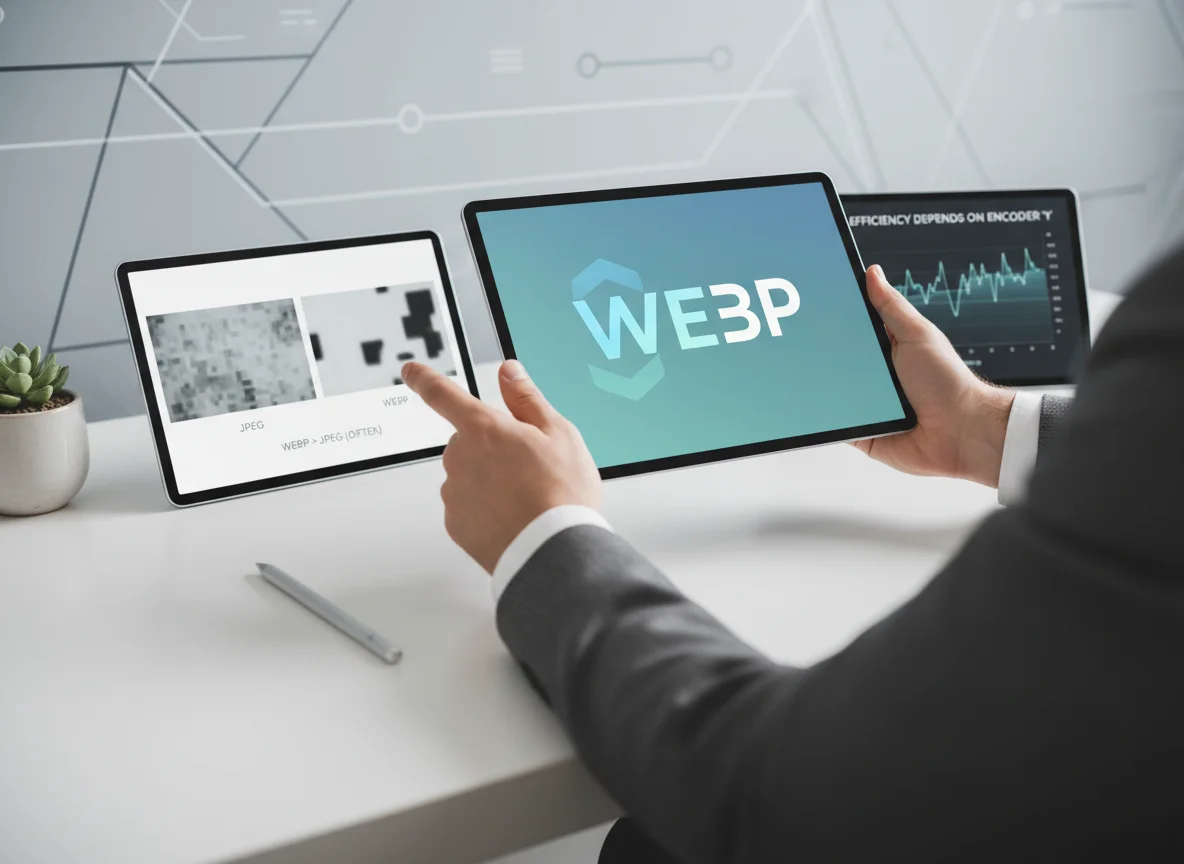
WebP’s file size advantage isn’t a sure thing because, frankly, not all JPEGs are created equal. That widely-quoted stat about WebP being 25-34% smaller? It comes from Google’s own comparisons against an old JPEG encoder called libjpeg. But today, many websites and modern tools use far more advanced encoders, like MozJPEG, which produce much smaller JPEGs at the same visual quality.
When you put a WebP up against a JPEG optimized with something like MozJPEG, the file size gap narrows quite a bit. For smaller photos, say around 500 pixels wide, WebP usually still has a slight edge. Yet for larger visuals (1000px or more), a well-optimized JPEG can often be the same size as or even smaller than its WebP counterpart. This is precisely why blindly converting all your files might not give you the results you’re hoping for. The first step should always be to test and compare.
Here’s a quick breakdown of the key differences:
| Feature | JPEG (Modern, Optimized) | WebP |
|---|---|---|
| Compression Type | Uniform, block-based | Adaptive, video-codec based |
| File Size | Highly competitive with WebP, especially for large images | Often smaller for small-to-medium images; can be larger than optimized JPEGs |
| Browser Support | Universal (100%) | Very high (around 97%), but requires a fallback for older browsers |
| Transparency | Not supported | Supported (lossy and lossless) |
| Animation | Not supported | Supported |
In Which Scenarios Is WebP the Better Choice?
WebP is definitely the superior option in a few specific situations where its unique features give it a clear advantage over JPEG. Knowing these use cases helps you make a smart decision instead of just following a generic rule.
- Images with Transparency: This is WebP’s clearest win. JPEG simply can’t handle transparent backgrounds. Before WebP, your only real choice was PNG, which often creates huge files. WebP offers transparency with lossy compression, resulting in files that are dramatically smaller than PNGs. For example, if you’re selling products on a colored background, this is a . I’ve seen e-commerce sites cut their product image weight by over 70% just by switching from PNG to WebP for items needing a transparent background.
- Small Images and Thumbnails: For visuals under roughly 500-600 pixels wide—like user avatars, icons, or product thumbnails—WebP consistently delivers smaller files than even a highly optimized JPEG. When a page has to load dozens of these little graphics, the total savings can seriously boost your page speed.
- Animated Graphics: If you need simple animations, WebP is a fantastic modern alternative to the old GIF format. It supports 24-bit color (GIFs are stuck at 8-bit) and produces much more compact files, meaning you get higher-quality animations that load way faster.
A common mistake I see is people assuming that because WebP is newer, it must be better for everything. The reality is a bit more nuanced. For your standard photos without transparency, a well-optimized JPEG is still a fantastic and universally compatible choice.
How Should You Test Your Own Images?
Look, don’t rely on claims or general studies; test your own images to see which format performs better for your needs. The process is straightforward and gives you real data to work with. The goal is to find the smallest possible file size with no noticeable drop in visual quality.
First, pick a representative sample of your visuals. Choose a few different types: a large banner photo, a medium-sized product shot, and a small thumbnail. Then, use an online image compressor that supports both JPEG and WebP formats. Upload your original high-quality file and export it in both formats at a similar quality setting (say, a quality level of 80).
Simple as that. Now, compare the results. Check two things: file size and visual quality. Is the WebP file actually smaller? Zoom in on both versions and look for any weird artifacts. Pay attention to detailed areas and smooth gradients. Sometimes, a WebP file might be 10% lighter but introduces noticeable blurring in a key part of the photo. In that case, the slightly larger JPEG is the better choice. This whole process takes just a few minutes and gives you a clear answer.

A Real-World Example: Optimizing an E-commerce Catalog
Imagine an online store selling handcrafted leather goods, with a catalog of over 2,000 products. After a site audit, they were told to convert their entire image library from JPEG to WebP to speed things up. They ran a bulk image compression and conversion, but the results were underwhelming. Their page speed score barely budged, plus their server storage costs went up by 5% because many of the large, detailed product shots were bigger as WebP files.
So what did they do? They adopted a hybrid approach. They reverted the large hero images and detailed product photos back to highly optimized JPEGs. Meanwhile, they used WebP for all the small thumbnail images on category pages and in the shopping cart. This strategy played to WebP’s strengths. The result was a 20% reduction in total page weight on category pages and a measurable improvement in their Core Web Vitals, all while cutting their overall image storage needs. This case just goes to show that smart, selective optimization beats blind conversion every time.
Images makeup on average 50% of a web page’s total weight. Optimizing them effectively is one of the fastest ways to improve user experience and SEO. — HTTP Archive
While WebP is a great tool, the future likely belongs to even more advanced formats. AVIF, another format based on a video codec, consistently shows around 30% better compression than even modern JPEGs. As browser support for AVIF continues to grow, it is poised to become the new standard for web images.
So, what’s the verdict? The key isn’t whether WebP is better than JPEG, but when to use each one. WebP is brilliant for small images, anything needing transparency, and animations. For your large, standard photos, however, a modern optimized JPEG remains a powerful and universally supported format. To really see the difference, take one of your main website photos and run it through a compression tool that outputs both formats. Compare them side-by-side. That five-minute test will give you a more accurate answer than any article ever could.
FAQ
Can WebP handle transparent backgrounds like PNGs do?
Absolutely. WebP supports transparency and usually creates much smaller files than PNG, which is perfect for logos or product shots on non-white backgrounds.
Is switching to WebP a bad move for my SEO?
Quite the opposite! If it makes your images smaller and your site faster, it’s great for SEO. Google loves fast sites, and that directly helps your Core Web Vitals score.
So I can just switch everything to WebP now?
You’re almost there. While over 97% of browsers support it, it’s still smart to have a JPEG or PNG fallback for older ones. Luckily, most modern platforms and plugins handle this for you automatically.
What’s the biggest visual problem with WebP?
The main thing to watch for is that its compression can sometimes over-smooth areas with subtle texture, like skin or a clear sky. This can make them look a bit flat or artificial compared to a good JPEG.
Compress images without losing quality