Photoshop Alternatives: 6 Best Free Editors 2026 (Tested)
Picking the right free Photoshop alternative in 2026 usually boils down to one thing: which tool actually handles your specific pain point—be it layers, PSD exports, or quick AI touch-ups. If you’ve ever hit the subscription wall, you know the frustration. Paying $20+ every single month just to tweak a few product photos or update a social banner feels like a tax on your creativity. Still, many creators stick with outdated software because they fear a new tool will eat up their entire weekend just to learn the basics.
The good news? In 2026, you can achieve pro-level results without renting your editor forever. The real challenge isn’t finding options—it’s cutting through the noise. Most “free” editors exist just to push annoying upgrades or slap watermarks on your hard work. You need a workspace that respects your time, keeps your layers intact, and handles PSD files without breaking them. You want an editor that works as hard as you do, without asking for your credit card every thirty days. Besides, your workflow deserves more than a stripped-down trial version.
How to best free photoshop alternatives 2026?
In practice, the smartest move is picking a tool that balances technical control with modern AI speed. For most users in 2026, the best replacement isn’t a single app—it’s a hybrid approach. You use a powerful desktop editor for heavy lifting like layer management and PSD handoffs, paired with a lightweight browser-based photo editor for quick AI-driven fixes. This pairing stops you from settling for one app that tries to do everything but fails at most. Plus, it keeps your system from lagging when you just need a fast export.
Imagine you’re designing a set of web banners. A professional desktop suite that offers a free tier is your best bet for combining raster editing and vector paths in one window. This “all-in-one” setup is much faster than jumping between three different apps. It serves as a solid free Photoshop alternative for Windows and Mac, provided you check the latest license terms. Even though these tools look complex, they offer the non-destructive editing you need so a single mistake doesn’t ruin your entire project file.
If you value community-driven software, open-source tools remain the industry’s backbone. They win on customization and long-term file ownership. When searching for Photoshop alternatives for Windows 10 or Linux, look for those that meet professional photo editing standards. Because these tools allow for deep scripting, you can automate the boring parts of your job. Then again, if you just need to resize and polish a single image, a heavy install might be overkill.
- Non-destructive editing: Always use masks and adjustment layers instead of the eraser tool to keep your original pixels safe.
- Hardware acceleration: Turn this on in your settings so your brushes and zooms stay buttery smooth, especially on high-res monitors.
- Web-optimized formats: Stick with editors that support modern formats like WebP to keep your site load times low.
- CMYK support: Unless you only work for web, verify print color support before building a client template library.
Choose Your Workflow Persona
Think about your daily tasks to decide which tool fits. For example, if you’re an E-commerce Seller, your priority is batch background removal and clean product crops. If you’re a Social Influencer, you need quick resizing and crisp typography that looks great on mobile. However, if you’re a Budget Graphic Designer, you need layer discipline and precise vector paths that won’t lose quality when you scale them for a client’s billboard.
Is GIMP really as good as Photoshop for professional designers?
The most efficient way to use GIMP is to treat it as its own powerhouse rather than a 1:1 clone. It is a serious, pro-grade raster graphics editor, but the interface will feel alien if you’re coming from Creative Cloud. In 2026, the 3.0 update finally brings modern display support and a smoother UI, which helps answer the “is there a free alternative to photoshop” question with a resounding yes for client-ready work. While it looks different, the underlying power is undeniable.
Designers often pick GIMP for tasks requiring complex automation. It handles advanced masking and path tools that save hours when processing dozens of assets at once. Yet, there is a learning curve. If you’ve spent years in Photoshop, your muscle memory will fight you at first. Plan for a short setup session to remap your shortcuts and get comfortable. Once you do, the freedom of not paying a subscription becomes a huge relief. Besides, the plugin library is massive, covering everything from niche textures to specialized color corrections.
When comparing tools, ignore the hype and look at the technical specs. A comparison of raster graphics editors is the best way to check for things like 32-bit color depth or specific plugin compatibility. Since GIMP is open-source, your files stay yours forever, without the risk of a software company locking you out of your own work because of a billing error.
- Download the latest stable GIMP 3.x build to ensure you have the newest performance tweaks.
- Customize your workspace and shortcuts immediately to reduce the friction of switching.
- Add the G’MIC filter suite if you want a massive library of one-click creative effects.
- Create a “client-ready” export checklist (PNG/WebP, color profiles) to keep your deliveries professional.
Can AI-powered editors replace Photoshop for product photography?
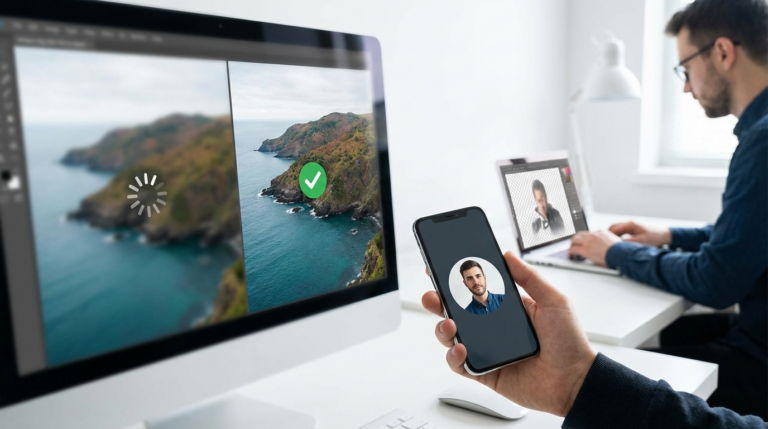
In 2026, the best AI image editor is usually a specialized tool rather than a jack-of-all-trades. For e-commerce, consistency is everything. AI tools can now handle the grunt work, removing backgrounds, cleaning up dust, and fixing lighting, so you don’t waste your life cloning out tiny specs on fifty different SKU photos. Because these tools are fast, you can focus on the creative side of the shoot instead of the tedious cleanup. Plus, many of these tasks can now be done directly in your browser.
But AI still has its limits. If you’re editing a product with lace, fine fur, or transparent glass, the AI might struggle with the edges. For high-end brand work, you still need a layer-based editor to manually refine those tricky masks. A smart workflow uses AI for the first 80% of the job and a desktop editor for the final 20%. For instance, you might use a dedicated background remover to get a clean cutout in seconds, then jump into a desktop app to fine-tune the shadows. Even though the AI gets you close, that manual touch makes it look expensive.
After your AI edits, you might find your image resolution is a bit low for a hero banner. In those cases, using a free upscale image tool is the perfect next step. It sharpens the results so your product looks crisp on retina displays. While upscaling won’t save a blurry photo, it helps clean up the minor artifacts that AI processing sometimes leaves behind.
- Batch removal: Great for catalogs, but always double-check the edges on reflective items.
- Generative fill: Useful for extending a background for a wide banner, but verify the realism at 100% zoom.
- Consistency: Save your AI prompts and lighting settings so your entire website looks uniform.
Which free editors support Photoshop (PSD) files without errors?
Any Photoshop alternative in 2026 is worthless if it flattens your layers upon import. Many web tools claim PSD support but end up stripping away your masks, blending modes, and editable text. If you collaborate with clients, you need a tool that respects their file structure. Otherwise, you’ll spend more time fixing the file than actually editing it. Since collaboration is the norm, file fidelity isn’t just a feature, it’s your reputation on the line.
Desktop suites focusing on pro formats are usually your safest bet. They can often import PSD and even PDF files with high accuracy, keeping your layers and text intact. Still, never assume 100% compatibility. Test a few complex files early in the project. If you’re moving away from Adobe, check out these 5 key lessons for switching to avoid the usual migration headaches. Understanding how different tools handle layer effects will save you a lot of grief later on. Plus, it helps you set realistic expectations for your clients.
Then again, if you just need to make a quick change to a PSD on a Chromebook, a browser-based editor is a lifesaver. Just be aware that very large files might cause the tab to crash. Always keep a flattened PNG backup of your work just in case. Unless you test the round-trip (exporting and reopening in Photoshop), you won’t know if your client can actually use the file you sent back.
How to circle crop an image online for free?
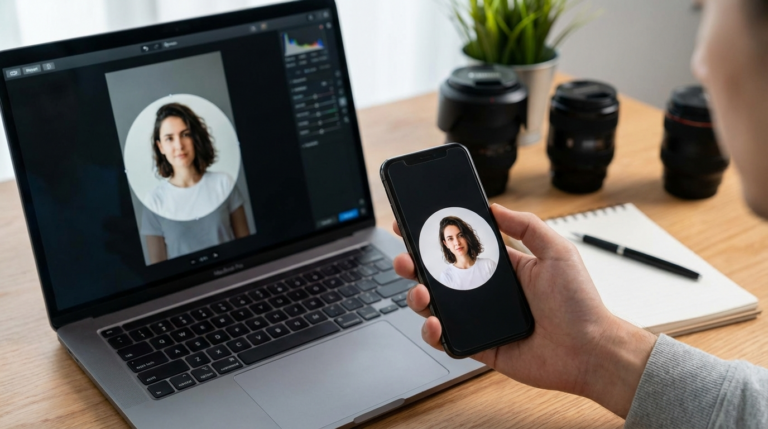
When you need a circle crop for a LinkedIn profile or a team page, you don’t need a massive software install. Speed is the priority here. The most direct way is using a circle crop tool that runs right in your browser. It lets you center your face, adjust the framing, and export in seconds. Plus, it ensures your avatars look consistent across all your social platforms. Because it’s a dedicated tool, it avoids the clutter of a full photo editor.
A common mistake is exporting circle crops without transparency. If you don’t use a format like PNG or WebP, your circle will have a white box around it, which looks messy on dark backgrounds. For the best technical results, read our guide on how to circle crop an image online. It covers how to avoid jagged edges and ensure your profile picture looks sharp on every device. If your original photo has a cluttered background, use a background remover first to make your subject really pop within that circle.
- Upload: Drag your photo into the browser window.
- Position: Center the circle on the subject and leave a little “headroom” for a professional look.
- Format: Always pick PNG or WebP with transparency enabled.
- Check: Preview it on both light and dark backgrounds to ensure the edges are clean.
The Budget Graphic Designer’s Toolkit
The secret to a pro-level workflow on a budget is a hybrid toolkit. No single free app does everything perfectly, and trying to force one to do so just causes stress. Most designers use one tool for digital painting, another for RAW processing, and a third for final optimization. This modular approach is much more stable and leads to better results. For instance, you might use Krita for your illustrations because its brush engine is superior, then move to another tool for the final layout. Also, this prevents one app crash from losing all your work across different stages.
Once your design is finished, the final step is often the most overlooked: optimization. Before you upload to your site, run your files through an image compressor. It cuts file sizes drastically without hurting the visual quality, which is essential for SEO. Plus, it saves your users’ data. Then again, if you’re sending files to a printer, make sure you don’t compress them too much or you’ll lose the sharpness needed for high-quality ink. Still, for web use, compression is non-negotiable.
Finally, make sure you’re using the right format for the job. Our guide on the best file format for transparent images explains when to use WebP over PNG. Using the wrong format can lead to ugly halos or massive file sizes that slow down your pages. Even though it seems like a small detail, it’s what separates amateur work from professional delivery. Unless you have a specific reason to use older formats, stick with modern standards to keep your workflow future-proof.
To build the best free Photoshop stack in 2026, start by identifying your biggest bottleneck. Is it PSD compatibility, slow background removal, or high-res upscaling? Once you know that, pick one desktop tool for heavy lifting and a few specialized web tools for speed. Run a real-world test, like a PSD round-trip or a quick circle crop, to make sure the workflow actually holds up under pressure. Because, the best tool is the one that lets you finish your work and get away from your screen.
If your next step is professional guide to ai product photography in 2026. learn to use claid and photoroom for ecommerce backgrounds and lifestyle image generation, AI Product Photography: 6 Best Strategies for Ecommerce (2026) is a dedicated option for that workflow.
FAQ
Can free Photoshop alternatives open .AI files?
Yes, many can open them if the .AI file was saved with a PDF-compatible preview. Still, you should always check a test file to see if your layers and text remain editable before committing to a project.
Are template-based apps better for social media than these alternatives?
They are definitely faster for layouts, but they lack the deep control needed for detailed photo retouching or complex masking. Most creators use a dedicated photo editor for the assets and a template app for the final layout.
Is it safe to download these free tools in 2026?
Stick to official sites and well-known open-source repositories to stay safe. If a web-based tool asks for excessive permissions or forces a suspicious download, it’s best to look elsewhere.
Do I really need a dedicated GPU for these editors?
While basic crops work on anything, a GPU makes a massive difference when you’re working with high-res files or AI tools. Turning on hardware acceleration usually fixes any lag you might experience during heavy editing sessions.
Can I use these free tools for my paid client work?
Absolutely—most open-source and free editors allow commercial use with zero restrictions. Just ensure the tool handles the specific export formats (like PSD) that your clients require for their own internal workflows.
Compress images without losing quality