The Fastest Way to Circle Crop Photos in Photoshop
Ever had that perfect headshot for your website’s team page, but the square format just feels. clunky and outdated? I remember the old days in Photoshop, where getting a clean circular crop meant messing with layer masks and linking layers. It was slow and fussy. The good news is there’s a much better way now.
The Frame Tool is a . It gives you a non-destructive way to crop images into perfect circles, and you can even add borders or swap out pictures in a snap. This approach saves a ton of time and gives you a more flexible result for social media profiles, web design, or marketing materials.
What Is the Photoshop Frame Tool?
So, what exactly is the Frame Tool? Think of it as a smart container for your pictures. It’s designed to create placeholder frames that you can instantly fill with an image. It basically combines a mask and a container into one simple action, letting you crop a photo into a circle or rectangle. You can hit the ‘K’ key to bring it up or just find its icon in the toolbar.
The best part, in my opinion? It’s non-destructive. This means your original photo stays completely safe and editable inside the frame. You can move it, resize it, or even swap it out for a different picture without ever damaging the original. This flexibility is perfect when you’re creating templates or just trying out different looks in the same layout.
How to Create a Perfect Circle Crop Step-by-Step
Getting that perfect circle crop is actually pretty simple. Let’s walk through it. Follow these steps to turn any rectangular image into a polished, round version ready for anything.
- Prepare Your Image Layer: First, open your image in Photoshop. If you see a little padlock icon on your layer in the Layers panel, it’s locked. Just double-click it and hit OK to unlock it. This gives you more freedom to edit.
- Select the Frame Tool: Grab the Frame Tool from the toolbar (or press K). Look at the Options Bar at the top and make sure the circular shape is selected, not the rectangle.
- Draw Your Circular Frame: Place your cursor where you want the circle to start. Now, hold down the Shift key while you click and drag. Don’t forget this part! Holding Shift is what guarantees a perfect circle instead of a wonky oval.
- Adjust the Image and Frame: Once the frame is there, you can tweak the image and the frame separately. To move or resize the photo *inside* the circle, click the image thumbnail in the Layers panel and use the Move Tool (V). To adjust the entire circular crop itself, click the frame thumbnail instead.
Customizing and Refining Your Circular Image
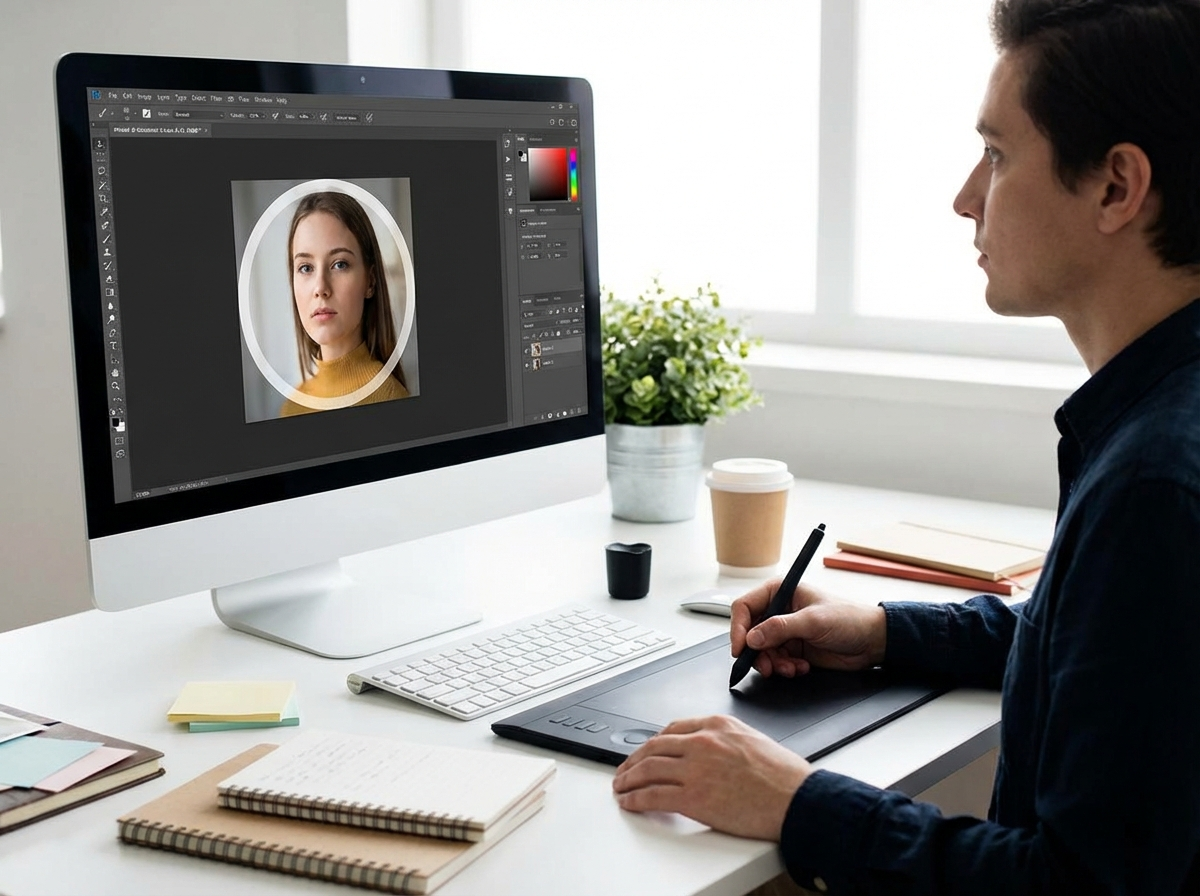
Okay, you’ve got your circle. Now for the fun part: making it pop. The Frame Tool plays nicely with other Photoshop features, so adding custom touches is a breeze.
Adding a Border (Stroke)
A thin border is a classic touch, especially for profile pictures. With the frame layer selected, go to the Properties panel (Window > Properties). You’ll see options for ‘Stroke’. Here you can pick a color, set the border’s thickness, and decide on its alignment. I usually stick with an ‘inside’ stroke because it doesn’t change the overall size of your image.
Replacing the Image Inside the Frame
The Frame Tool’s placeholder ability is a massive time-saver. Imagine you’re updating headshots for the whole team. To swap the image, just drag a new photo file from your computer and drop it right onto the frame. Photoshop automatically replaces the old picture. This is amazing for creating standardized team photos for a company website, ensuring all profile pictures look consistent.
Exporting Your Circle Crop with a Transparent Background
What’s the point of a nice circle crop if it’s stuck inside a white box, right? Getting a transparent background is key for letting it sit cleanly on any website or design.
Here’s the critical part: you must export it in a format that supports transparency, like PNG. If you export as a JPEG, all that transparent area will turn solid white, which ruins the effect.
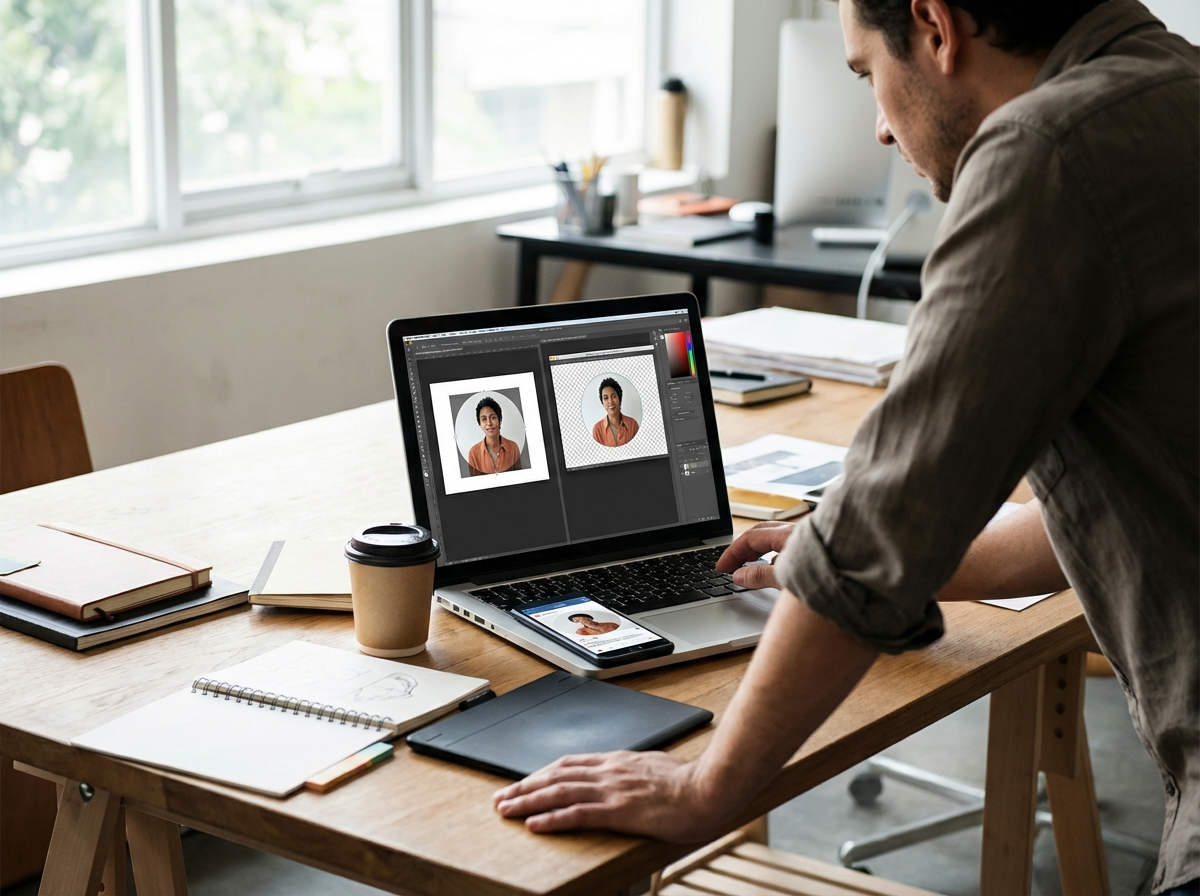
To do it right, hide or delete your original background layer, so only the circular frame is showing. Then, just right-click on the frame layer and choose ‘Quick Export as PNG’. Pick a spot to save it, and you’re done. Your new PNG file will have a perfectly circular image with nothing around it.
After you export, I always recommend one final step: run the file through an online image compressor. This simple action reduces the file size without a noticeable drop in quality, which helps your website load faster and gives a nice boost to your Image SEO.
When You Don’t Need To Photoshop
Let’s be honest, firing up Photoshop just to crop a profile picture can feel like using a sledgehammer to crack a nut. If you just need a quick circular avatar for social media or a forum, complex software is often overkill. Getting the right Instagram profile picture size, for example, shouldn’t take more than a minute.
For those quick jobs, a dedicated online tool is a much better choice. A browser-based circle crop tool lets you upload an image, adjust the crop, and download the final PNG file in seconds. No software to install, no subscriptions, and no learning curve. It just works.
So, the Frame Tool in Photoshop really does streamline what used to be a tedious task. It’s faster, more flexible, and just plain easier than the old methods. For your next project, give it a shot instead of wrestling with layer masks. You might be surprised how much time you save.
FAQ
What’s the real difference between the Frame Tool and a layer mask?
Think of it this way: the Frame Tool is a shortcut for creating simple placeholder shapes like circles. A layer mask is the more powerful, all-purpose tool for complex edits where you need to hide or show specific parts of a layer.
Can I make an oval instead of a perfect circle?
Absolutely. To create an oval, just click and drag the Frame Tool on your canvas without holding the Shift key. This lets you freely create the exact oval shape you need.
Help! My circle crop saved with a white background.
That almost always happens because you exported it as a JPEG file. JPEGs don’t support transparency, so you must save or export your final image in the PNG format to keep the background clear.
How can I swap the picture inside the circle without redoing everything?
Easy. Just select the frame layer, then find the new image file on your computer and drag it directly onto the frame on your Photoshop canvas. It will pop right in, replacing the old one automatically.
Crop images into a circle for free