What Is an Image Optimizer? A Guide to WebP, AVIF & More
Think of an image optimizer as a tool that shrinks your photos and graphics through compression and format conversion. It can take standard files like PNG and JPG and turn them into modern, leaner alternatives like WebP and AVIF. The payoff? A much faster website, which is great for both your visitors and your SEO rankings.
Imagine you’ve spent weeks perfecting your e-commerce store. The product photos look sharp, the copy is perfect, but your analytics tell a frustrating story: people are bouncing from your product pages without buying. A quick speed test often reveals the culprit. Your beautiful, high-resolution visuals are so large they slow the page to a crawl, especially on mobile. Sound familiar? This isn’t just a minor hiccup; it’s lost revenue. Every second a customer waits, their interest fades, and a potential sale walks out the door.
What is image optimization and why is it crucial for website performance?
Let’s get straight to it. Image optimization is the art of reducing the file size of your visuals as much as possible without sacrificing acceptable quality. This involves a few key techniques, like compression, resizing to the correct dimensions, and picking the right file format. The goal is to make your website lighter and faster for every visitor, on any device. It’s not about making images look worse; it’s about making them smarter and more efficient for the web.
The impact on website performance is direct and measurable. According to Google’s image optimization best practices, images are often the biggest resource hogs on a page. When you optimize them, you directly improve your site’s Core Web Vitals, especially the Largest Contentful Paint (LCP), which measures how quickly the main content loads. A faster LCP score signals to search engines that your site offers a good user experience, which can positively affect your SEO. I’ll be honest, I’ve seen many cases where simply optimizing a site’s photo library cut the page load time in half, directly boosting conversions.
Images make up on average 50% of a web page’s total weight. Optimizing them is one of the most effective ways to improve performance. — HTTP Archive
But it’s not just about SEO; the effect on user engagement is huge. A slow-loading site frustrates people and sends bounce rates through the roof. If your product photos take more than a couple of seconds to appear, many potential customers will simply give up and head to a competitor. A fast, snappy experience, though, keeps users engaged, encourages them to browse more pages, and builds trust in your brand. In practice, what really works is a consistent strategy for every visual you upload, not just a one-time fix.
How do different image formats (PNG, JPG, GIF, WebP, AVIF) compare?
Picking the right image format is a foundational step in optimization. As detailed in guides like the MDN Web Docs on image file types, each format has specific strengths and weaknesses. The five most common formats you’ll run into are JPG, PNG, GIF, and the modern powerhouses, WebP and AVIF. It’s just common sense: you wouldn’t use the same format for a complex photograph as you would for a simple logo with a transparent background.
For years, JPG was the standard for photographs because of its excellent color handling and compression, while PNG was the go-to for graphics needing transparency. Still, these older formats are less efficient than their modern counterparts. WebP, developed by Google, often provides significantly smaller file sizes than both JPG and PNG for comparable quality. To learn more about this, our guide on WebP vs. Modern JPEG offers a detailed comparison. AVIF is even newer and can offer even greater compression, though its browser support is still catching up. You can check the current AVIF browser support to see if it’s right for your audience. Here’s a quick comparison to help you choose the right format:
| Format | Best For | Key Feature | Main Drawback |
|---|---|---|---|
| JPG (JPEG) | Photographs, complex images | Excellent for millions of colors | No transparency, lossy compression |
| PNG | Logos, icons, graphics with transparency | Lossless compression & transparency | Very large file sizes for photos |
| GIF | Simple animations | Widely supported for animation | Limited to 256 colors, large files |
| WebP | All-purpose web images (replaces JPG & PNG) | Superior compression with transparency | Not supported by very old browsers |
| AVIF | High-performance web images | Best compression-to-quality ratio | Newer, less universal browser support |
Here’s something most guides won’t tell you—but I’ve learned this the hard way—serving modern formats requires a fallback. While WebP is supported by over 97% of browsers, you still need to provide a JPG or PNG for the remaining users. The most efficient solution is to use a tool or service that automatically detects browser capabilities and serves the best possible format. For a full breakdown of these next-gen options, see our guide to modern image formats like AVIF and WebP.

What are the best strategies for compressing PNG and JPG images?
Image compression is the magic of reducing file size by intelligently removing or grouping parts of the image data. You’ll hear about two primary methods: lossless and lossy compression. Lossless reduces file size without losing any image data, making it perfect for logos and technical diagrams where every pixel counts. Lossy compression, on the other hand, permanently removes some data, resulting in much smaller files at the cost of a slight, often imperceptible, reduction in quality.
For most web uses, especially for photos on e-commerce sites or blogs, lossy compression is your best friend. A JPG compressed at 80% quality is often visually identical to the original but can be less than half the file size. A mistake I keep seeing is people using lossless compression for large hero images. The file size barely shrinks, and the site slows to a crawl. In my experience, a 70-80% quality lossy compression is the sweet spot for balancing performance and visuals. You can test this yourself with a free online image compressor to see the difference.
Here’s another key strategy: strip unnecessary metadata. Digital photos often contain extra information embedded in the file, like the camera model, settings, and location (EXIF data). While useful for photographers, this data adds weight to the file with zero benefit to your website visitors. Plus, most image optimizer tools automatically remove this metadata during compression, giving you an easy performance win. For a business, this simple step, applied across thousands of product photos, can save gigabytes of bandwidth and significantly speed up the user experience.
How to convert images to WebP and AVIF for faster loading?
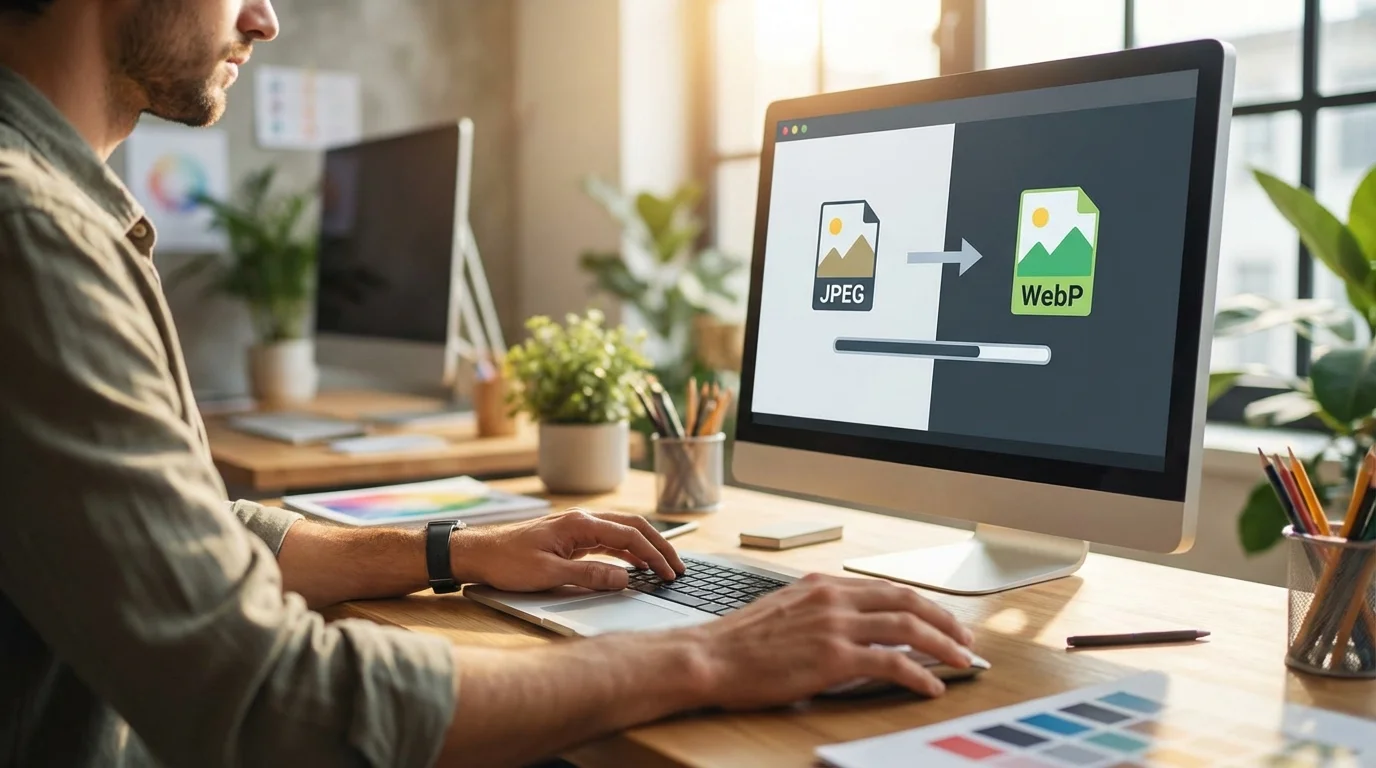
Switching from traditional image formats like JPG and PNG to modern ones like WebP and AVIF is one of the most effective optimization techniques out there. Seriously. These next-gen formats use superior compression algorithms to create smaller files while maintaining high visual quality. The process involves taking your source image and re-encoding it into the new format. You can do this manually with individual files or automatically across your entire website.
For a single image, you can use a free online format converter to quickly change a PNG to a WebP file. This is great for occasional use, like updating a hero image. For websites with hundreds or thousands of visuals, though, a manual approach just isn’t practical. In these cases, automated solutions like WordPress plugins or services integrated with a Content Delivery Network (CDN) are way more efficient. These tools can automatically convert new uploads and even bulk-process your existing media library, serving the WebP or AVIF version to compatible browsers while providing a JPG or PNG fallback for older ones.
Let’s look at a practical mini case study. A freelance photographer’s online portfolio was struggling with very slow load times. Her high-resolution JPG gallery images averaged 1.5 MB each, causing the homepage to take over six seconds to load. After implementing an automated solution to convert her entire gallery to the WebP format, the average image file size dropped to just 400 KB—a reduction of over 70%. This simple change cut the homepage load time to 1.8 seconds. As a result, her bounce rate decreased by 30%, and she reported a 15% increase in inquiries through her contact form within the first month.
Choosing the best image optimizer tool for your website
So, what’s the best image optimizer tool for you? The honest answer: it depends entirely on your workflow and technical needs. There are three main categories: online tools for manual optimization, desktop software for offline processing, and automated plugins or services for websites. Each serves a different purpose, and knowing which one to choose can save you a ton of time and effort.
Online tools are perfect for quick, one-off tasks. If you need to compress a few photos for a blog post or create a profile picture, these browser-based solutions are fast and require no installation. Desktop software, like Adobe Photoshop or dedicated apps, offers more control and is ideal for professionals like photographers who need to process large batches of images before uploading. They provide fine-grained control over compression settings and formats.
From my experience helping clients with e-commerce sites and busy blogs, automated plugins are the most efficient solution. For platforms like WordPress, an integrated image optimizer handles everything in the background. It compresses new uploads, converts them to modern formats, and serves the correct version to each visitor. The key benefit is the automation. It ensures every single visual on your site remains optimized without requiring constant manual work, safeguarding your site’s performance as it grows.
Look, image optimization is no longer a ‘nice-to-have’—it’s a fundamental requirement for any successful website in 2026. By choosing the right formats, applying smart compression, and using the right tools, you can dramatically improve your site’s speed, boost your SEO, and provide a better experience for your visitors. Your first step is simple: run a speed test on your most important pages. Identify the largest image files and start by running them through a compression tool to see the immediate impact.
To expand semantic coverage and answer closely related search intent, also address terms such as “compress image png” and “png to webp converter”.
For a practical option in this area, try AI Tool Sage for blog with reviews and comparisons of the best ai tools.
FAQ
So what’s the real difference between lossy and lossless compression?
Think of it this way: lossless is like a perfect zip file for your photo—it gets smaller, but you lose zero quality. Lossy, on the other hand, cleverly throws away tiny bits of data you’ll likely never miss, which makes the file much, much smaller.
Will my photos look bad if I optimize them?
Honestly, not if you do it right. With modern lossy compression, you can usually reduce file size by 60-80% before any visual difference becomes apparent. For web use, the performance gains are almost always worth the tiny, invisible trade-off.
WebP or AVIF: which one should I actually use in 2026?
WebP is your safest bet since it works on nearly all browsers. While AVIF offers slightly better compression, it’s still less supported. The pro move is to serve AVIF to browsers that support it, with a fallback to WebP, and a final fallback to JPG/PNG.
What about all the old photos already on my site?
Easy. Most website platforms, like WordPress, have plugins that can scan your existing media library and ‘bulk optimize’ all previously uploaded images. This process runs in the background, so you don’t have to re-upload anything.
Do I have to make separate, optimized images just for mobile?
Nope, not usually. Modern websites use responsive design, which automatically serves different image sizes based on the screen. A good image optimizer creates and compresses these different sizes for you, so you don’t have to manage them separately.
Compress images without losing quality