YouTube Banner Size Guide 2026: Dimensions & Safe Zone
The recommended YouTube banner size is 2560 x 1440 pixels, but the mobile-safe area is only 1546 x 423 pixels. Always place your logo and text within this central safe zone to ensure they are visible on all devices. Keep the file size under 6MB for fast loading.
Imagine this scenario: you’ve just designed a stunning banner for your YouTube channel. The colors are vibrant, the logo is sharp, and the tagline is perfectly placed. You upload it, and on your desktop computer, it looks flawless. A few hours later, a friend texts you a screenshot from their phone, and your heart sinks. Your beautiful logo is cut in half, and the tagline is nowhere to be seen. That’s exactly what happens when you ignore YouTube’s complex display rules.
What Are the Official YouTube Banner Size Guidelines?
The official YouTube banner size is 2560 x 1440 pixels with an aspect ratio of 16:9. This large dimension is designed to look great on large television screens. You must also follow other critical requirements to ensure your banner displays correctly everywhere. According to the official YouTube Channel Art Guidelines, these are the key specifications:
- Recommended size: 2560 x 1440 pixels.
- Minimum dimension for upload: 2048 x 1152 pixels.
- Minimum safe area for text and logos: 1546 x 423 pixels. This is the central part that is always visible.
- Maximum file size: 6MB.
Adhering to the 2560 x 1440 pixel recommendation ensures your image is high-resolution enough for large displays. The most important number to remember is the 1546 x 423 pixel safe area, as this is the only part of your banner guaranteed to be seen by every visitor.
How Do YouTube Banner Safe Zones Work Across Devices?
The YouTube banner safe zone is the central area of your banner image that remains visible regardless of the viewer’s screen size. Because a single 2560 x 1440 pixel image is used for TVs, desktops, tablets, and phones, YouTube crops it aggressively. What the manual doesn’t say—but experience shows—is that you should design for mobile first.
Here is how the cropping works on different devices:
- TV Display (2560 x 1440 px): The entire banner image is shown. This is the only case where the full design is visible.
- Desktop Display (2560 x 423 px): On most desktop browsers, YouTube displays a wide but short slice from the middle of your banner. The top and bottom sections are cropped out.
- Tablet Display (1855 x 423 px): On a tablet, the view is slightly narrower than on a desktop, trimming the sides of the banner.
- Mobile Display (1546 x 423 px): This is the most restrictive view. It shows only the absolute center of your banner. Any design elements outside this small rectangle will be invisible to mobile users.
In practice, what I see most often is creators placing important information too far to the sides. Always treat the 1546 x 423 pixel central area as your true s. Everything else is just background decoration for larger screens.
What Is the Optimal Resolution for a YouTube Banner?
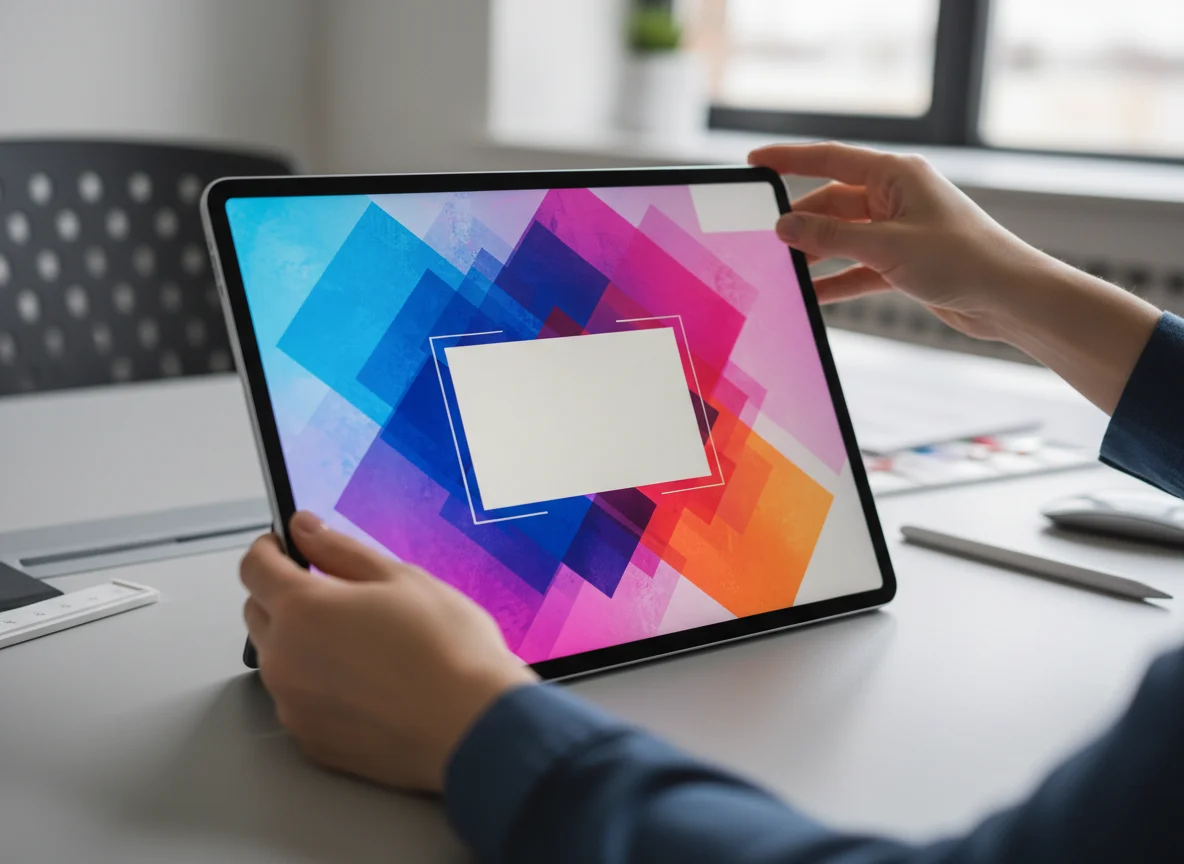
The optimal resolution for a YouTube banner is 2560 x 1440 pixels to ensure sharpness on high-definition displays like smart TVs. Resolution refers to the number of pixels in an image, and a higher pixel count results in a clearer, more detailed picture. While your banner might look fine on a small phone screen at a lower resolution, it will appear blurry and unprofessional on a 4K TV if not uploaded at the recommended size. For a deeper dive into how pixel density affects image quality, Adobe offers excellent documentation on understanding image resolution and size.
While high resolution is key, you also need to manage the file size. YouTube imposes a strict 6MB limit. High-resolution images, especially in formats like PNG, can easily exceed this limit. If your file is too large, you can use an online image compressor to reduce its size without a noticeable drop in quality. This helps your channel load faster, which is a small but important part of the user experience and overall YouTube SEO strategy.
How to Design a YouTube Banner in Figma with Correct Dimensions
Figma is an excellent tool for designing a YouTube banner because its vector-based nature and guide system make it easy to manage safe zones. You can create a pixel-perfect banner that works on all devices by following a simple workflow.
- Create Your Main Frame: Start by creating a new frame in Figma with the full YouTube banner size in pixels: 2560 wide by 1440 high. This will be your master s.
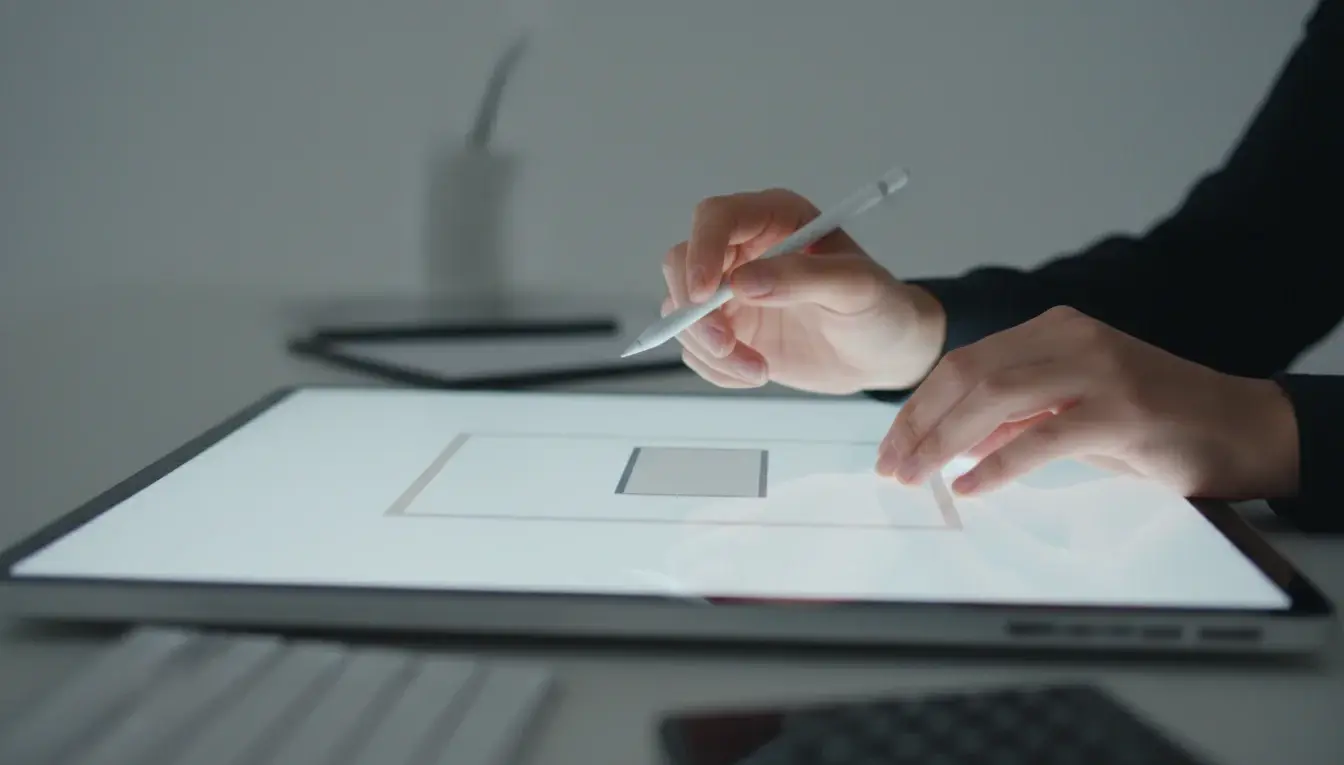
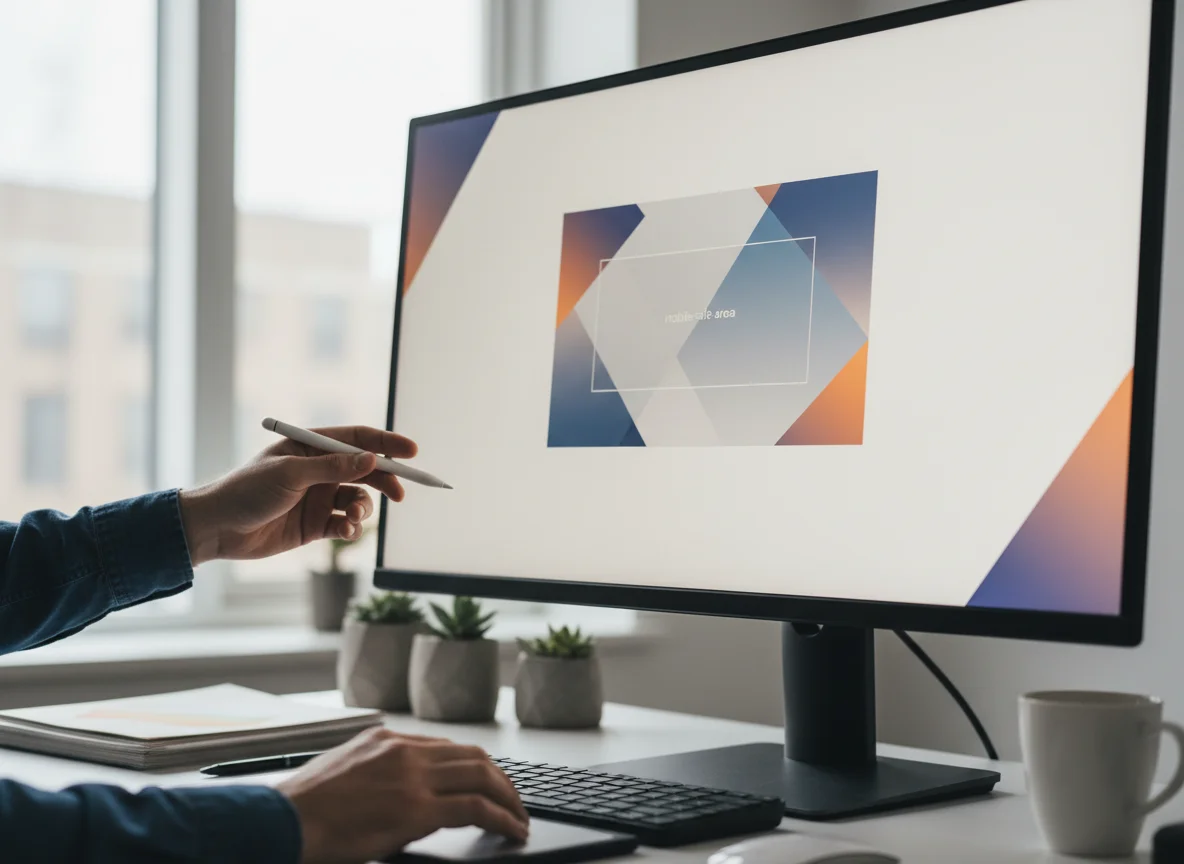
- Draw the Safe Zone: Inside your main frame, draw a rectangle that matches the mobile safe zone: 1546 wide by 423 high. Center this rectangle both horizontally and vertically. This rectangle is your most important visual guide.
- Add All Critical Elements Inside: Place your channel name, logo, tagline, and any essential graphics entirely within this 1546 x 423 rectangle. If you have a portrait photo, you might first use a free background remover to isolate the subject before placing it.
- Design the Background: Use the space outside the safe zone for background textures, patterns, or secondary images that add context but are not essential. This area will be visible on desktops and TVs.
- Export Your Banner: Once your design is complete, select the main 2560 x 1440 frame and export it as a PNG or JPG file. Make sure the final file size is under 6MB before uploading it to YouTube Studio.
What Are Common Mistakes to Avoid with YouTube Banner Sizes?
A common mistake is designing the banner without considering the different device layouts. Creators often design on a large monitor and assume it will look the same everywhere. This leads to several predictable errors that can make a channel look unprofessional.
- Placing Text Near Edges: Any text or logos placed outside the central 1546 x 423 px safe area will be cut off on mobile devices. Always keep your core message centered.
- Using a Busy Background: A complex background can clash with your profile picture and the video thumbnails displayed on your channel page. A simple, on-brand texture often works better.
- Poor Readability: Using thin fonts or low-contrast colors can make your channel name unreadable, especially on smaller screens. Choose bold, clear typography.
- Forgetting File Size: Uploading a file larger than 6MB will result in an error. Always check your file size after exporting your design.
A small business owner I once advised, who runs a popular baking channel, made this exact error. Her banner featured her beautifully designed logo on the far left. On her desktop, it was perfect. On mobile, it vanished. The solution was to redesign it by moving the logo and channel name into the central safe zone. The result was surprising: her brand became instantly recognizable on all devices, and she noted a tangible increase in subscribers coming from mobile discovery.
Mastering the YouTube banner size is less about memorizing pixels and more about embracing the “mobile-first” design philosophy. By focusing all your critical branding within the 1546 x 423 pixel safe zone, you guarantee a consistent and professional look for every visitor. Open your design tool now, draw that central rectangle, and check if your current banner passes the test.
FAQ
What is the best format for a YouTube banner?
PNG is the best format for banners with detailed graphics or text, as it offers lossless compression for maximum quality. If your file size exceeds the 6MB limit, use a high-quality JPG instead.
Can I use my phone to create a YouTube banner?
While you can use mobile apps to design a banner, it is much easier to use a desktop tool like Figma. A larger screen allows you to accurately manage the different safe zones and ensure pixel-perfect alignment.
How often should I change my YouTube banner?
You should update your banner whenever your branding changes, to promote a major event or series, or to reflect seasonal content. Otherwise, a strong, evergreen banner can remain effective for years.
Why does my YouTube banner look blurry?
Your banner may look blurry if you uploaded an image with dimensions smaller than the recommended 2560 x 1440 pixels. It can also happen if you used a highly compressed JPG file, which can create visual artifacts.
Remove image backgrounds for free