How to Use an AI Twitter Banner Resizer for a Perfect Fit
You’ve got that perfect picture for your Twitter profile. The one that truly captures your brand’s vibe, shows off your awesome team, or highlights your product beautifully. You upload it, but then Twitter’s interface hits you with a dilemma: crop the top or sacrifice the sides? I know the feeling. No matter what you choose, a key part of your visual is lost, and the final banner often ends up looking awkward and, frankly, unprofessional. Ever been there? This common frustration is exactly what AI-powered image extenders are designed to fix.
An AI Twitter banner resizer uses outpainting technology to stretch your picture to that ideal 1500×500 pixels without any cropping. This clever process intelligently adds new, context-aware content to the edges, preserving your entire photograph. The main benefit? You get a perfectly fitted header that doesn’t chop off important visual elements. No compromises.
Why Standard Resizing Tools Fail for Twitter Banners
The core of the problem, in my experience, lies in Twitter’s very specific requirements. The social network demands a header image with a 3:1 aspect ratio, recommending generous measurements of 1500 pixels wide by 500 pixels tall. Most photographs, especially those snapped with smartphones or standard cameras, just don’t naturally fit this wide, panoramic format. They’re often shot in 4:3 or 16:9 ratios, for example.
When you try uploading a non-compliant visual, you’re usually left with two pretty poor choices. A traditional resizing utility will either stretch and distort your picture to fit the dimensions, making it look warped and unprofessional, or it’ll simply crop it. Cropping, as we know, forces you to discard parts of your composition. Imagine you’re running an online store; cutting out a crucial part of a product image because of bad cropping? That’s a definite no-go. For a content creator, it might mean awkwardly slicing off a person in a group shot. Neither option presents your brand in the best light, and frankly, it’s frustrating.
How AI Outpainting Creates the Perfect Fit
AI outpainting, also known as image extension, is a clever bit of tech that’s the exact opposite of cropping. Instead of removing pixels, it intelligently adds them. When you provide a visual, the AI analyzes its content – everything from colors and textures to patterns and lighting. Then, it generates new visual information around the original photo’s borders, ly extending the scene to fill that required 1500×500 pixel space. Pretty neat, right?
Picture this: you have a stunning landscape shot, but it’s just too tall for the banner. An AI extender will generate more sky, clouds, or ground that perfectly matches the existing scene. The technology is sophisticated enough to continue lines, replicate gradients, and maintain the overall mood of the photograph. The result is a complete, natural-looking graphic that fits Twitter’s header slot perfectly, all while keeping your original subject fully intact. It’s truly a for digital creatives.
Resizing Your Twitter Banner in Three Simple Steps
Using an AI-powered extender is a straightforward process that honestly requires no technical expertise. While different platforms have minor variations, the core workflow is nearly universal and, in my experience, takes less than a minute.
- Upload Your Image: Start by dragging and dropping your chosen picture into the AI resizer. Most modern solutions support common file formats like JPG, PNG, and WebP.
- Select the Twitter Preset: Instead of manually entering specific sizes, simply choose the preset for a Twitter header. The utility automatically sets the target size to 1500×500 pixels and prepares the AI for the extension process. Some options also allow custom sizes up to 4096 pixels for those high-resolution needs.
- Generate and Download: With a single click, the AI will analyze and extend your visual. Within seconds, you’ll see a preview of the new, perfectly sized banner. If you’re happy with the result, you can download it immediately, often without watermarks and ready for commercial use. Simple as that.
Essential Twitter Image Dimensions for 2026
While the banner is your profile’s centerpiece, maintaining a consistent and professional look across Twitter requires knowing all the key dimensions. But what about the rest of your profile? Ever thought about how a mismatched set of images can make your whole profile feel disjointed? Here are the most important sizes to keep in mind for 2026.
- Header Banner: 1500 x 500 pixels (3:1 aspect ratio)
- Profile Picture: 400 x 400 pixels (1:1 aspect ratio)
- In-Feed Post Image: 1200 x 675 pixels (16:9 aspect ratio)
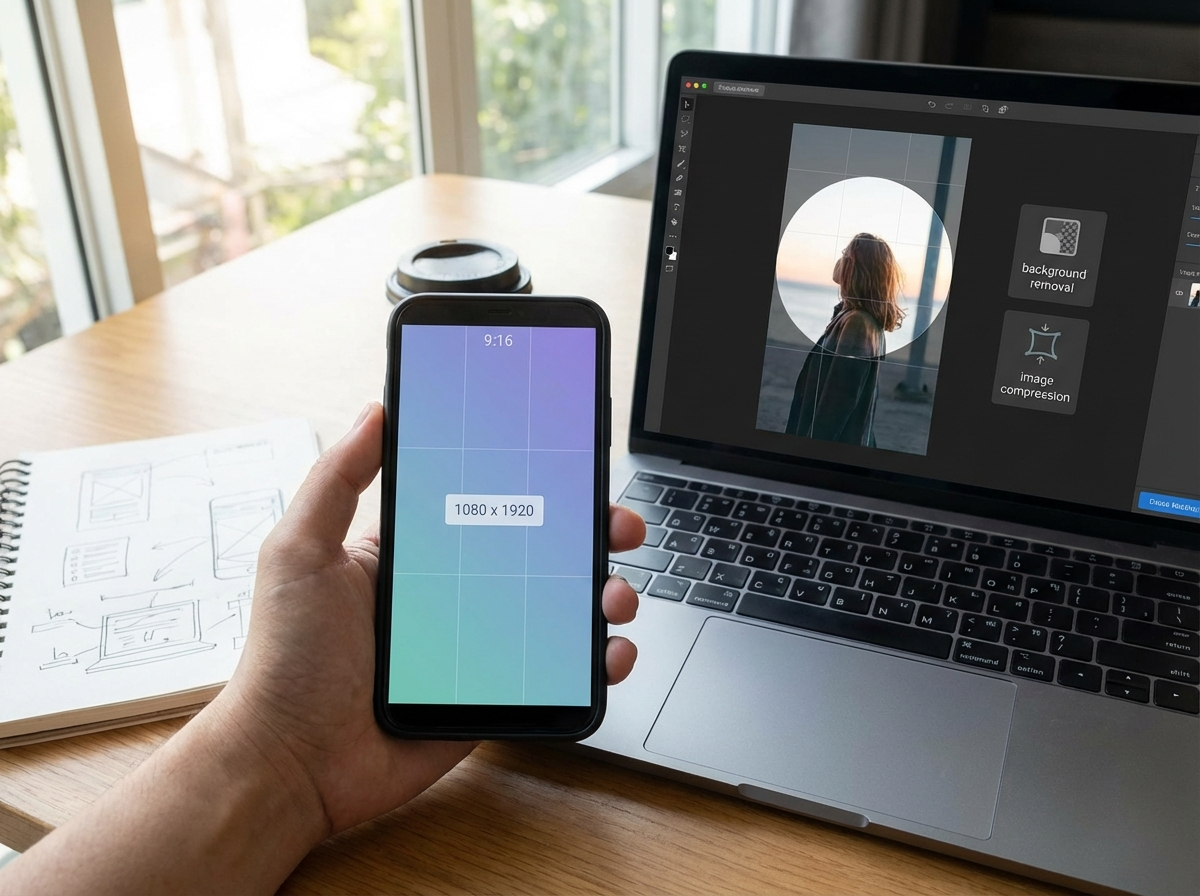
Your profile picture is just as important as your banner, by the way. Since Twitter displays it as a circle, it’s a good practice to preview your 400×400 pixel image in a circular frame. You can do this easily with a free circle crop tool to ensure your logo or headshot is perfectly centered and not awkwardly cut off. For a complete overview of all platforms, our social media image size guide provides a comprehensive reference, too.
Best Practices for a High-Impact Twitter Header
I’ll be honest, getting the dimensions right is just the first step. To create a truly effective banner, you should also consider composition, file type, and overall performance. A great header not only fits perfectly but also loads quickly and communicates your message clearly.
Be mindful of your profile picture’s placement. On most devices, your profile photo will overlap the bottom-left portion of your banner. So, avoid placing critical information like logos, text, or faces in that area. Keep the most important elements centered vertically and horizontally to ensure they are always visible.
Always start with a high-resolution source picture. Twitter, you see, compresses all uploaded visuals to manage file sizes, which can cause a slight loss in quality. By uploading a sharp, clear original, you ensure the final result looks crisp even after compression. Consider the file format, too. A detailed comparison of PNG vs JPEG vs WebP shows that each has its strengths; JPEG is best for photos, while PNG is superior for graphics with sharp lines and text.
Keep an eye on the file size. Twitter’s official limit for a header is 5MB. If your AI-extended banner is larger than that, you should definitely reduce its size before uploading. A simple way to do this is with an online image compressor, which can significantly shrink the file size without any noticeable drop in visual quality. Plus, it helps your profile load faster for visitors. Worth trying.
You no longer need to compromise your best visuals to fit a restrictive template, and that’s a huge win. By using an AI image extender, you can preserve the integrity of your original photograph while still meeting Twitter’s technical requirements. In my experience, this simple shift in workflow ensures your profile makes a strong, professional first impression. Find a free AI extender online and give your favorite picture the full banner space it truly deserves.
FAQ
What is the official Twitter banner size for 2026?
The official Twitter banner size is 1500 pixels wide by 500 pixels tall. This corresponds to a 3:1 aspect ratio and ensures your header displays correctly across desktop, mobile, and tablet devices.
How does AI outpainting work for a Twitter banner?
AI outpainting analyzes the pixels at the edges of your original visual. It then generates new, contextually appropriate content—like more sky, grass, or background texture—to expand the picture to the required 1500×500 dimensions without cropping. It’s a clever solution.
Can I use a vertical photo for my Twitter header?
While an AI extender can adapt a vertical photo, the results may look unnatural due to the extreme change in aspect ratio. For the best and most natural-looking extension, it’s recommended to start with a picture that is already in a horizontal (landscape) orientation.
What file format is best for a Twitter banner?
For photographic banners, JPG is usually the best choice due to its efficient compression. For banners that contain text, logos, or sharp graphics, PNG is often better as it preserves fine details without compression artifacts. WebP offers a modern alternative with excellent quality and small file sizes, too.
Crop images into a circle for free