X Image Sizes 2026: The Complete Guide for Posts & Profiles
We’ve all been there. You spend an hour designing the perfect graphic for your product launch, upload it to X, and then realize the platform has awkwardly cropped it, cutting off your headline and logo. It’s a common frustration that can undermine your message and make your brand look unprofessional. So, how do you prevent this? You need to use the right image dimensions. Think 400×400 pixels for profile photos, 1500×500 for headers, and either 1200×1200 (1:1) or 1200×675 (16:9) for posts in the feed. Sticking to these specs, plus keeping file sizes in check (5 MB for static images, 15 MB for GIFs), ensures your visuals look sharp every single time.
Mastering the Core Profile Images: Photo, Header, and Banner
Think of your profile as the digital storefront for your brand or personality on X. Your profile photo, header, and in-feed visuals all work together to create that crucial first impression. Getting their dimensions right is the first step toward a polished, professional presence. Simple as that.
Profile Photo: 400 x 400 pixels
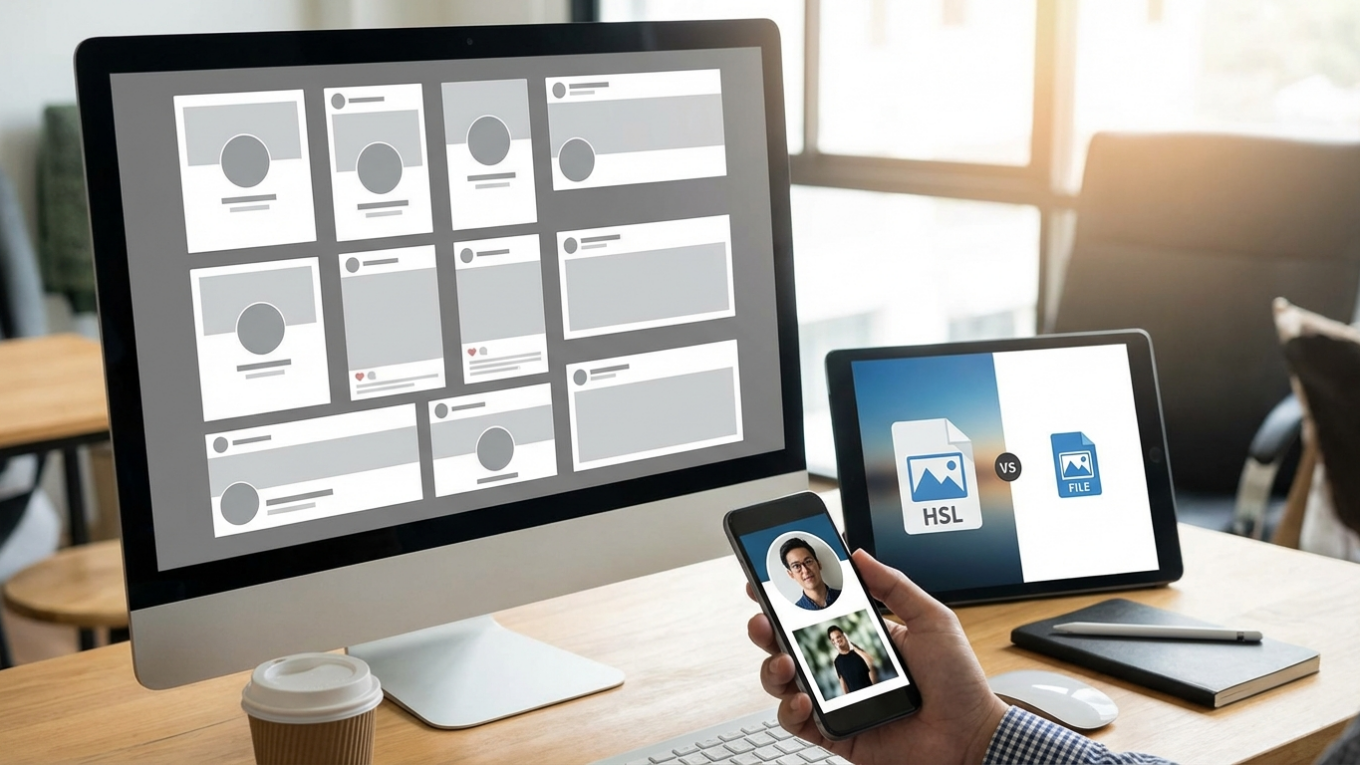
Your profile photo is your main identifier on X, appearing next to every post and comment you make. The recommended upload size is 400 x 400 pixels, but here’s the catch: it gets displayed as a circle. Because of this automatic mask, it’s super important to keep your main subject centered and make sure no critical details are in the corners. I’ll be honest, it can be tricky. For a perfect fit, I’d recommend using a circle crop tool before uploading. It lets you preview exactly how it will look, so there are no surprises. Just remember the maximum file size is 2 MB, and you can use JPG, PNG, or GIF.
Header Image: 1500 x 500 pixels
The header image, or banner, is that big graphic at the top of your profile. The sweet spot for dimensions is 1500 x 500 pixels. While this wide aspect ratio is great for showcasing brand imagery or a tagline, you have to watch out for responsive cropping. On different devices, the top and bottom of the banner can get trimmed. Plus, your profile photo will cover the bottom-left corner. Imagine you have a call to action there—it could get completely hidden. To avoid this, keep all your essential text and logos within a central “safe zone” so they stay visible everywhere. For more detailed guidance, you can learn how to use an AI banner resizer to nail the fit every time.
Optimal Sizes for In-Feed Image Posts
Now, what about the visuals you share directly in your timeline? These are a core part of any X content strategy. Even though the platform is flexible, following the recommended sizes prevents your graphics from being awkwardly cut off. You want to make an impact without forcing people to click to see the full picture. It’s all about reducing friction for your audience.
- Square Images (1:1): The recommended size is 1200 x 1200 pixels. This format occupies significant screen space on mobile feeds and is highly effective for engagement. It’s a versatile choice for product shots, infographics, and announcements.
- Landscape Images (16:9): For wider visuals, use 1200 x 675 pixels. This is the standard horizontal aspect ratio, ideal for photographs and traditional banner-style graphics.
- Portrait Images (3:4 or 2:3): While X supports taller images on mobile (up to 1080 x 1350 pixels), be aware that they will be cropped to a 16:9 landscape preview on the desktop timeline. The full picture is only visible after a click. If your audience is primarily on desktop, it’s safer to stick with square or landscape formats.

File Formats and Size Limitations
Choosing the right file format and staying within size limits affects both image quality and loading speed. X supports several common formats, each with its own ideal use case.
- JPG (or JPEG): This is the best choice for photographs and complex pictures with many colors. It offers a good balance between quality and file size.
- PNG: Use this format for graphics that require a transparent background, such as logos or icons. PNG files are lossless, which means they retain higher quality than JPGs but often result in larger file sizes. You can find out more about the differences in our PNG vs JPEG vs WebP guide.
- GIF: This format is exclusively for animated images. Looping GIFs can be a great way to capture attention in a crowded feed.
- WebP: A modern format that provides excellent quality with smaller file sizes compared to JPG and PNG. It is widely supported and a solid option for optimizing your visuals.
Here’s the bottom line: regardless of the format, the maximum file size for static visuals (JPG, PNG, WebP) on X is 5 MB. For animated GIFs, you get a bit more room to play with at 15 MB. If your file is too big, you’ll need to shrink it. In my experience, a good online image compressor can reduce file size without you even noticing a drop in quality.
Image Guidelines for X Cards and Link Previews
Ever wonder how X creates those neat little previews when you share a link? That’s an X Card. It pulls a title, description, and an image from the linked page, and getting that visual right is key for driving clicks. The standard size for an X Card image is 1200 x 628 pixels (a 1.91:1 aspect ratio). But what happens if you don’t set one? The platform might just grab the first picture it finds, leading to some weird cropping. To control this, website owners need to use meta tags (specifically `twitter:image`) in their page’s HTML to tell X exactly which image to show.
Specifications for X Image Ads
If you’re running paid campaigns on X, the image specs are a little different and really matter for maximizing performance. While the formats can vary by your campaign goal, here are the guidelines for the most common image ads:
- Standalone Image Ads: For ads with a website button, the recommended dimensions are 800 x 418 pixels (1.91:1 aspect ratio) or 800 x 800 pixels (1:1 aspect ratio). The square format generally performs better on mobile devices.
- Carousel Ads: These ads allow you to showcase multiple pictures (or videos) that users can swipe through. Each card in the carousel should use images sized at 800 x 418 pixels (1.91:1) or 800 x 800 pixels (1:1). Consistency in aspect ratio across all cards is key for a smooth user experience.
The file size limit for ads is also 5 MB. Since ad performance is tied to loading speed, compressing your images is even more important in this context.
Quick Checklist for Perfect X Images
Okay, before you hit ‘Post’ on your next visual, run through this quick checklist. Trust me, a few seconds of review can save you from the headache of a poorly displayed image.
- Check the Dimensions: Check that your image matches the recommended size for its placement (profile, header, feed). Use 1200×1200 for square posts as a reliable default.
- Verify the File Size: Verify that your JPG, PNG, or WebP is under 5 MB and your GIF is under 15 MB. Compress if necessary.
- Review the Composition: For profile and header photos, ensure the main subject is centered and clear of any areas that might be cropped or covered.
- Add Alt Text: Write a descriptive alt text for your image. This makes your content accessible to users with visual impairments and is a good practice for SEO. You can learn how to write image alt text for SEO to improve your reach.
- Preview on Mobile: Preview how the image looks on a smartphone. Since most X users are on mobile, this preview is arguably more important than the desktop view.
Look, treating X’s image specs as part of your strategy—not an afterthought—is what separates the pros from the amateurs. A correctly sized visual captures attention, drives engagement, and just plain looks better, reflecting the quality of your brand. So before your next post, take that extra minute to get the dimensions right. It’s a small step that makes a huge difference in how your content performs.
FAQ
What’s the best image size for a single X post in 2026?
For a single image post on X, your best bet is 1200 x 1200 pixels (a 1:1 square). This format looks great on both mobile and desktop feeds without any weird cropping.
Why does my X header image look blurry?
A blurry header is usually because the uploaded image is smaller than the recommended 1500 x 500 pixels. When the platform stretches a small image to fit that big space, it loses quality and looks fuzzy.
Can I post a tall portrait image on X?
Yep, you can definitely post portrait images (like 1080 x 1350 pixels). They show up perfectly on the mobile app’s timeline. Just be aware that on the desktop site, they’ll be cropped to a landscape preview until someone clicks on them.
What’s the max file size for an image on X?
For static images like JPG, PNG, and WebP, the maximum file size is 5 MB. If you’re using an animated GIF, you have a bit more wiggle room with a 15 MB limit.
Compress images without losing quality