Best Photo Background Editing App Free: 8 Tools & Tips (2026)
If you want the best photo background editing app free in 2026, start with a tool that lets you finish the job instead of stopping at the export screen. For most readers, that means a browser tool or a modest desktop app with full-resolution output, while Photoshop still fits harder paid work.
The catch usually appears late. The cutout looks clean, then the download turns blurry, capped, or locked behind a paywall right when you need to publish an ecommerce product image, an Instagram post, or a batch of catalog photos before lunch.
It is about usable transparent PNG export, edge quality on hair or glass, batch handling, privacy, and the amount of time each app quietly takes from you. Ignore the glossy claims. Check the plain details first, because those decide whether a free tool is actually useful.
NoBG.space is the strongest free pick when you need no watermark, full resolution, and local processing
NoBG.space is the clearest answer to the best photo background editing app free question if your main goal is a free background removal tool with no watermark. Based on the source material, it is free forever, runs locally in the browser, supports high-resolution images, works offline after the initial load, and returns results in about 2 to 3 seconds. That mix is rare. Most free tools give you one or two of those benefits, not the full set.
The local-processing part matters more than many comparisons admit, because uploading supplier photos, client portraits, or unreleased product shots is not a minor checkbox. It is a business decision. If you handle sensitive files, a browser program that keeps them on your device is the safer default, and as of 2026 it can also feel faster when your connection is weak but your laptop is still capable.
Its limitation is simple: you trade a big feature stack for speed and privacy. You will not get layer masking, deep retouching, or advanced compositing. If your workflow is cut subject, export transparent PNG, then place it on a product page, that is fine. If you need to rebuild shadows or clean tiny edge contamination, you will hit the ceiling sooner than you want.
Imagine a small store owner cleaning ten supplier photos for a weekend sale. NoBG.space fits that job well because the goal is quick isolation and a clean export, not a long retouching session. Then again, if the same seller needs premium hero images with reflective packaging, a manual editor still gives more control.
- Best for: ecommerce product images, quick catalog prep, simple portrait cutouts, privacy-sensitive files
- Free export catch: none mentioned in the source, which is the main advantage
- Speed: about 2 to 3 seconds per image in the source, though device performance still matters
- Edge test read: strong for general subjects, yet not a replacement for manual refinement on extreme hair or transparent glass
- Skip this if: you need full design-suite editing, complex layer comps, or detailed manual retouching
For a quick web workflow, pair the cutout with an online image compressor before you upload it to your store. That step matters because large transparent files can slow the page even when the cutout looks clean. You can review image-loading basics on web.dev, and you can go deeper with this guide on native lazy loading images if you publish many transparent assets.
Best photo background editing app free: Photoshop is still the best backgroun
Photoshop is still the professional answer because it gives you tools that one-click apps do not fully replace: Select Subject, Refine Edge, the Pen Tool, layer masking, and Content-Aware Fill. The source lists its Photography plan at $31.49 per month as of 2026, which is expensive, so you should check Adobe’s official pricing for current details. Hair strands, reflective edges, semi-transparent fabric, and complicated shadows are where manual refinement still earns its keep.
That price only works when you use the extra control. A product photographer, retoucher, or design team can justify it because one accurate cutout may prevent a reshoot or protect brand quality. A casual seller handling ten marketplace photos a month usually cannot. That is the hidden catch: Photoshop is excellent, but it becomes overkill very quickly.
It also is not the fastest option for high-volume batch background removal. You can automate parts of the process, and actions help, but a tool built around one-click isolation is still faster for repetitive jobs. If you only need transparent PNG export and clean subject separation, paying more than $30 every month is hard to defend in 2026.
Picture a jewelry photo with thin chains, soft reflections, and faint shadows under the product. That is where Photoshop still separates itself, because you can inspect the edge at high zoom, adjust the mask by hand, and keep the parts an automatic cutout would blur away. For easier catalog photos, though, the extra control may simply slow you down.
| Photoshop factor | What it means in practice |
|---|---|
| Price | $31.49/month in the source as of 2026, so it fits a professional budget more than a casual one |
| Best strength | Edge refinement tools and layer masking for difficult subjects |
| Weak spot | Steep learning curve and a slower workflow for simple one-off cutouts |
| Best use case | Commercial retouching, premium product work, and tricky hair or glass |
If your work is mostly photo cleanup and not full compositing, check this related roundup of Photoshop alternatives. It helps you draw the line between needing Photoshop and simply needing a editor that cuts subjects cleanly.
Guided product cutout tools are better than most quick apps when product edges matter, but the free path is weak
A guided background editor has a clear advantage: it lets you tell the software what stays and what goes. The source describes a color-marking workflow built around that idea. That extra direction helps with edge refinement on products that confuse fully automatic subject detection, especially accessories, packaging, and items with holes or thin outlines.
For ecommerce, that difference matters. A generic AI isolation tool may miss a thin handle, punch a gap through a strap, or soften the corners of a box. A guided editor is slower, but it often gives you more predictable output. If you shoot bottles, shoes, apps, or home goods, that trade-off can be worth it because cutout quality comes first.
The weak point is just as clear in the source: downloads require a paid plan starting at $3.99 per month as of 2026, and there is no truly free high-resolution export path. Check official pricing before you buy because plans can change. If you need one image tonight and you do not want another subscription, this is not a smart pick.
Take a simple product example: a handbag with narrow straps against a pale background. A one-click tool may chew through the strap gap or soften the edges, while a guided workflow lets you correct that before export. Still, if your budget is zero, the free path falls apart too soon.
- Best for: product photos with tricky outlines and sellers who want more control than pure one-click AI
- Price point: starts at $3.99/month in the source as of 2026
- Batch suitability: better for consistency than for speed-only workflows
- Edge test read: better than generic auto tools on clean product boundaries, though still not magic on glass or hair
- Skip this if: you need a genuinely free workflow or you do not want a subscription for single-image export
For product pages, the cutout is only half the job. You also need believable lighting and a shadow that matches the object. If you build store images, read these product photography shadow techniques after you isolate the subject, because a flat cutout without shadow control looks cheap very quickly.
PhotoScissors is the practical offline choice if you want a one-time payment instead of another monthly bill
PhotoScissors sits in a useful middle ground. It is desktop software, it works offline after installation, it includes batch processing, and the source lists a $19.99 personal license as of 2026. That matters because many buyers are not chasing the newest AI model. They want a way to stop paying every month just to remove a background.
If you need a background remover on Windows or Mac, want local processing, and prefer a one-time purchase, it is easier to justify than a recurring cloud plan. For a small business with repetitive but not highly complex work, predictable cost often beats a fancier sales pitch.
The downside is also in the source: the AI is less sophisticated than newer tools, the interface feels dated, and advanced features are limited. So yes, it is practical. But it is not the top background removal software 2026 if you regularly work with hair, translucent materials, or premium catalog images. It is a budget workhorse.
Say you run a small marketplace store and need to clean twenty product shots every month on the same laptop. PhotoScissors can fit that routine well because the cost is fixed and the workflow stays local. Unless your products involve glassware, lace, or fine hair, the compromise may be acceptable.
| Question | PhotoScissors answer |
|---|---|
| Works offline? | Yes, after installation |
| Subscription required? | No, the source lists a $19.99 one-time personal license as of 2026 |
| Batch processing? | Yes |
| Best fit | Small teams and solo sellers who value cost control over newer AI features |
If you remove backgrounds offline and then need a cleaner zoom view for a marketplace listing, a free upscale image software can be a sensible follow-up. Use it only when the original file is already solid, because upscaling will not rescue a rough cutout or a weak source photo.
GIMP is the best zero-cost manual alternative when you’re willing to trade speed for control
GIMP rarely gets the flashiest placement in comparison posts, but it matters because it is free, local, and manual. The source includes it in the comparison table as a free local option with unlimited resolution and professional-style workflows. That means no watermark problem, no forced upload problem, and no subscription problem. Put simply, it is a safe fallback when automatic tools misread the subject.
The real question is whether you can live with the learning curve. Manual paths, masks, and selections take longer than automatic subject detection. If your deadline is tight, GIMP feels stubborn. If your budget is zero and you need more control than a one-click web app gives you, it starts to look much better.
For transparent objects, wispy hair, or scenes with overlapping shadows, manual cleanup is often the difference between looking acceptable on a phone and looking clean on a product page. You do not pay with money, but you absolutely pay with time.
A practical example helps. If an automatic tool leaves a gray halo around a clear bottle, GIMP gives you a way to zoom in, clean the edge, and export again without paying for credits. Plus, if you also need a lighter final file for the web, you can run the finished image through RoundCut’s image compressor before publishing.
- Best for: users with a $0 budget who still want local editing and manual correction
- Free export catch: none mentioned in the source table
- Main strength: control through manual editing rather than automated guessing
- Main weakness: slower workflow and a steeper skill demand
- Skip this if: you need fast bulk background removal or you dislike learning desktop editors
For readers comparing free editors more broadly, this article on free editors beyond Photoshop is a useful next step. It places GIMP in the bigger picture instead of treating background removal as a separate island.
Mobile-first apps are fine for Instagram, but desktop tools win for batch work and clean exports
If your main target is Instagram, a mobile-first editor can be enough. The benefit is speed: shoot, isolate, place the subject on a easy background, export, then post. For reel covers, story graphics, and casual feed content, that workflow is often good enough. But the best app to remove background from photos for Instagram is not automatically the best choice for ecommerce or print.
The reason is output discipline. Mobile apps tend to favor convenience over file control, while desktop programs are better when you need consistent transparent PNG export, repeatable s sizes, and cleaner edges on a larger screen where mistakes stand out. You can build a social post in minutes on a phone, yet for fifty SKU shots desktop software is the obvious winner.
The source also points to bulk-processing differences. Tools such as NoBG.space and PhotoScissors support higher-volume workflows, while pro desktop suites give better precision but slower throughput. For Instagram, you may accept a little softness around curls or sleeves. For product listings, you really cannot.
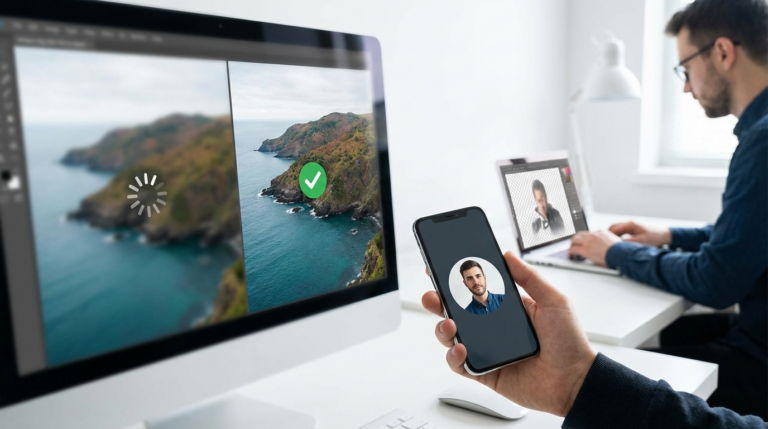
Imagine two jobs on the same day. One is a quick story graphic for a cafe menu. The other is a batch of thirty marketplace listings with white backgrounds and matching crop sizes. The first job fits mobile. The second does not. If those listings also become profile pictures or marketplace avatars, a clean circular crop from RoundCut is often the last step that actually matters.
| Workflow | Better choice | Why |
|---|---|---|
| Single Instagram post | Mobile or browser AI tool | Fast turnaround and simple editing |
| Catalog batch of 20 to 100 images | Browser batch tool or desktop software | More consistent export and less phone friction |
| Hair, glass, shadows | Desktop manual editor | Larger workspace and finer control |
| Private client files | Local-processing tool | No cloud upload risk |
If your end goal is a profile picture, do not overcomplicate it. After background removal, a simple circular crop is often enough for social platforms and marketplaces. This guide on profile photo dimensions and crop export is more useful than another generic editor list.
Hair, glass, and shadows expose the hidden catch in almost every free background editor
The hardest subjects are not people standing under clean studio light. They are fine hair, transparent glass, reflective edges, mesh, fur, and deep shadow overlap. Automatic subject detection can look impressive on a sneaker against a plain wall, then fall apart on a perfume bottle or curly hair.
For these edge cases, the strongest photo background editing app free is usually the tool that lets you leave automation when needed. Photoshop does this with manual edge refinement and layer masking. GIMP does it with slower but flexible manual edits. Guided product editors improve your odds with keep and remove markers. NoBG.space is excellent for speed, but the source does not claim it replaces detailed retouching on every difficult subject, and that honesty matters.
Do not trust a free editor until you ask three blunt questions: can it export transparent PNG at a useful resolution, can it keep fine edges without halos, and can it handle more than one image without pushing you into credits? That shortens the list fast and saves you from wasted uploads.
One practical check makes this easier. Open a portrait with loose hair, then zoom to 200 percent after the cutout. Next, test a glass bottle with a faint shadow. If the app keeps the edge clean in both cases, it may be worth keeping. If not, move on. Also, once the cutout is done, review whether you need a lighter export or a different format before the file goes live.
- Use automatic isolation first: good for plain products, portraits, and fast social content.
- Check the edge at 200% zoom: look for halos, missing strands, and muddy corners.
- Switch to guided or manual tools: do this when glass, hair, or shadows break the auto result.
- Export transparently, then optimize: review file size and format before publishing.
Format choice matters here too, because transparent assets behave differently depending on the file type, and that affects ecommerce performance and visual quality. For a clear breakdown, read which format is best for transparent images. For standards and browser behavior, MDN is still one of the most reliable references.
Side-by-side verdict: the winner is NoBG.space for free use, and Photoshop is the runner-up for pro control
If you care about actual value in 2026, NoBG.space wins. It checks the hardest boxes at once: free use, no watermark, local processing, unlimited usage, high-resolution support, and fast output. Photoshop is the runner-up, not because it is cheaper or easier, but because it still handles the ugly edge cases better when you know how to use it. The other options sit somewhere between those two points, with lower cost, narrower scope, or more friction.
That also makes some choices easy to rule out. Skip cloud-first apps that lock decent export behind a subscription if you only need a few images. Skip Photoshop if you do not need manual retouching and will not spend time learning it. Choose a guided product editor when predictable product cutouts matter more than pure free access. Choose PhotoScissors when you want offline use without another subscription. Choose GIMP when your budget is zero and your patience is still intact.
There is also a simple way to make the result more usable after the background is gone. If the subject is headed for a profile image, marketplace avatar, or team page, crop it into a clean circle with RoundCut’s free tool instead of leaving an awkward rectangle. If the file is too heavy, compress it before upload. Those last two steps are small, but they often matter more than another round of editor shopping.
| Name | Best For | Free vs Pro Reality | Key Limitation |
|---|---|---|---|
| NoBG.space | Best free overall, privacy-sensitive work | Free with no stated watermark or resolution cap in the source | Limited advanced editing suite |
| Adobe Photoshop | Professional cutouts, hair, glass, premium retouching | Paid at $31.49/month in the source as of 2026 | Expensive and slower for simple jobs |
| Guided product editor | Guided product-photo cutouts | Paid downloads from $3.99/month in the source as of 2026 | No truly free full-resolution path |
| PhotoScissors | Offline desktop use with one-time payment | $19.99 one-time personal license in the source as of 2026 | Less sophisticated AI and dated interface |
| GIMP | Manual zero-cost control | Free in the source table | Slower learning curve and workflow |
- Best free pick: NoBG.space for no-watermark export and local processing
- Best pro pick: Photoshop for manual control on hair, glass, and shadow cleanup
- Best budget paid pick: PhotoScissors if you want offline use without another recurring fee
- Best guided product cutout option: a guided editor if you accept the paid export model
- Best zero-cost manual fallback: GIMP when time matters less than budget
If you want a broader benchmark before choosing, this ecosystem comparison of background remover tools with edge-test focus is worth reading. It is especially useful if your images regularly include fur, glass, or soft shadows.
Pick one workflow today and test it on three hard graphics, not three easy ones: one portrait with loose hair, one glass or reflective object, and one product with shadow detail. If the export is clean, full-size, and usable without a paywall, keep it. If not, move on fast.
The best photo background editing app free for most people is still the one that lets you export a clean file without a watermark, privacy tradeoff, or hidden upgrade wall. Start with NoBG.space if you want the strongest free path, move to Photoshop when edge cleanup is part of paid work, and use PhotoScissors or GIMP when budget matters more than speed. Test with difficult images first, because that is where weak tools break. Then finish the job: compress the file for faster pages, or use RoundCut’s circular crop when the final graphic is headed to a profile, avatar, or marketplace listing.
If your next step is find the best ai tool for product photography editing in 2026. compare photoroom, snapshot, and lightx for shopify background removal and shadows, Best AI Tool for Product Photography Editing: 5 Tips (2026) is a dedicated option for that workflow.
FAQ
What is the safest option for private client photos or unreleased product images?
A local-processing tool is the safest default because the files stay on your device instead of going to a remote server. As of 2026, that matters for agencies, ecommerce teams, and anyone handling sensitive visual assets.
Is a transparent PNG always the best export after background removal?
No. Transparent PNG is still the safest choice when you need clean compositing, but it can be heavier than newer formats. If file size matters, compare the result with modern web-friendly alternatives and check browser support before publishing.
Why do some AI cutouts look fine on a phone and bad on a product page?
Phone screens hide a lot. Small halos, soft masking, and jagged edges are easy to miss on mobile but obvious on a larger desktop display, so edge review at higher zoom matters before you upload ecommerce product images.
Should you pay for batch editing if you only post to Instagram?
Usually no. If you make occasional feed or story graphics, a fast single-image workflow is enough, while paid batch features make more sense for repeated jobs such as seasonal catalog drops, marketplace listings, or agency deliverables.
What matters more for product photos: background removal or lighting?
Lighting still comes first. A clean cutout cannot fully fix bad reflections, muddy shadows, or weak separation from the original background, and better lighting also makes automatic subject detection more accurate.
Remove image backgrounds for free