Recortar reduz a qualidade da imagem?
O corte mantém intactos os pontos que você manteve. A qualidade só muda na hora de gravar o novo arquivo. Se exportar em PNG, o resultado preserva cada detalhe original. JPG, WebP e AVIF aplicam compressão na gravação, com qualidade alta por padrão. Como a saída tem no máximo a resolução da parte enquadrada, recortar não cria detalhe novo nem amplia a imagem além do que havia.
Como cortar uma imagem sem perder qualidade?
Escolha PNG como formato de saída, porque ele guarda cada detalhe da região que você enquadrou sem descartar nada. O WebP é uma boa alternativa mais leve quando a imagem não tem áreas vazadas. Evite reexportar várias vezes em JPG, já que cada nova gravação acrescenta compressão. Lembre que o recorte nunca amplia a foto, então a nitidez da saída é a mesma da parte original que você manteve.
Posso cortar um PNG e manter a transparência?
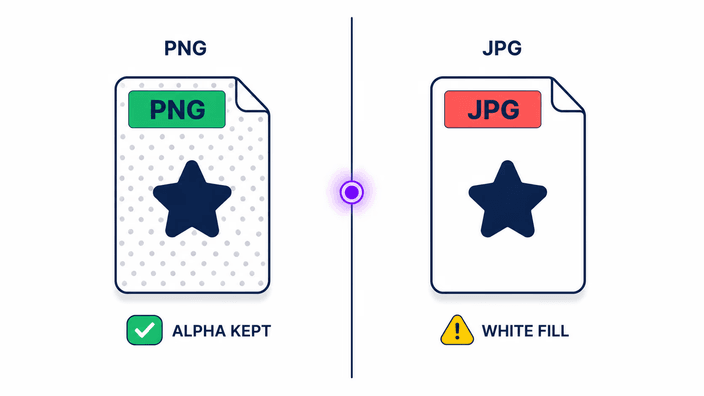
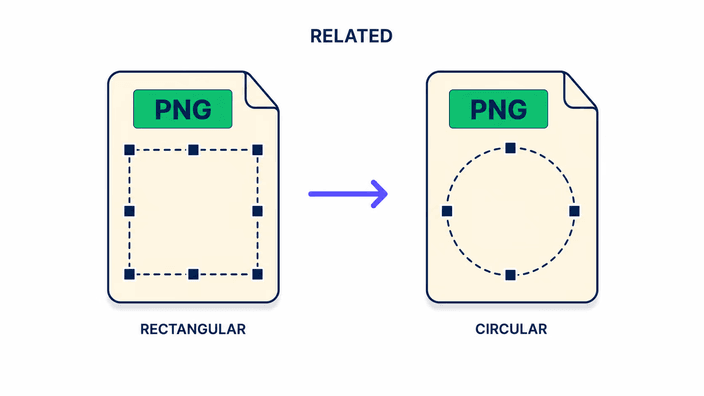
Sim. Exporte em PNG, WebP ou AVIF e a transparência da imagem original passa adiante, com os cantos recortados continuando vazados. Se escolher JPG, as áreas transparentes viram branco sólido, porque o JPG não tem canal de transparência. Para uma foto de perfil redonda com canto vazado, a ferramenta de corte em círculo é a indicada, já que esta aqui só faz recortes retangulares.
O corte de imagem é seguro com as minhas fotos?
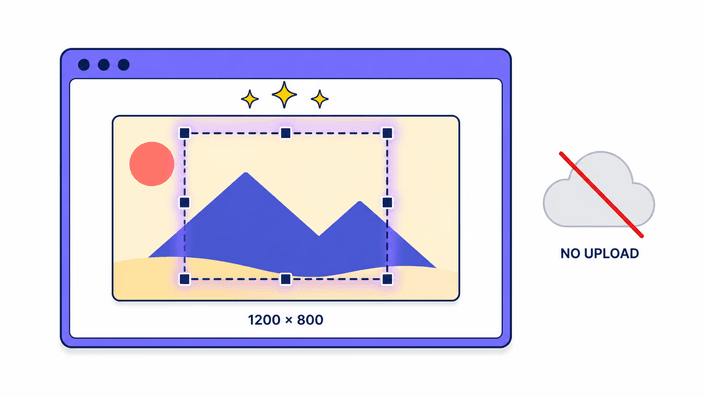
Sim. Escolher o arquivo, enquadrar, cortar, gravar e baixar acontece tudo no próprio aparelho, e a foto é tratada ali mesmo enquanto você ajusta a seleção. Por isso o resultado fica pronto na hora e você pode cortar uma imagem atrás da outra sem espera. Para entender em detalhe como os arquivos são tratados, veja a página de privacidade.
Como cortar uma imagem para o Instagram?
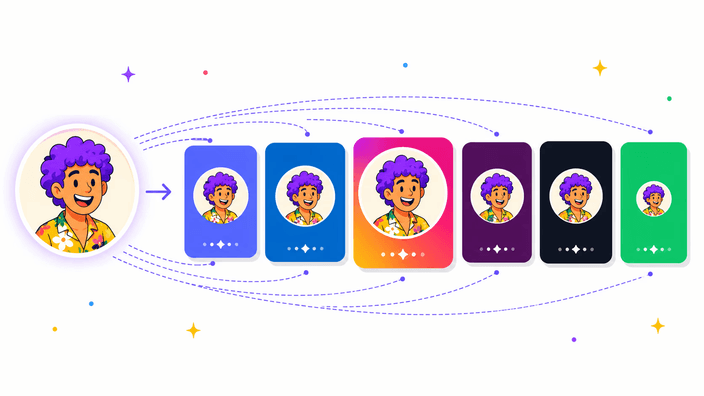
Abra a foto e trave a seleção no formato que a publicação pede, como o quadrado para o feed ou 4:5 para um post mais alto, ou use o modelo pronto que já inicia o recorte no tamanho da plataforma. Arraste a caixa sobre a parte principal, confira o enquadramento e baixe. Para um story, trave em 9:16, que ocupa a tela inteira no celular.
Posso cortar uma imagem com dimensões personalizadas?
Sim. Solte a trava de proporção e arraste as alças livremente para enquadrar exatamente a região que você quer. A tela mostra o tamanho real da seleção enquanto você ajusta, então você vê a resolução de saída antes de baixar. Se a sua meta é uma largura e uma altura específicas em vez de um enquadramento livre, redimensionar imagem é a ferramenta certa para fixar a medida final.
Quais formatos de imagem posso cortar online?
Você pode abrir PNG, JPG, WebP, AVIF e GIF para cortar, lembrando que de um GIF animado a ferramenta usa apenas o primeiro quadro. Na saída, escolha PNG, JPG, WebP ou AVIF conforme o destino da imagem. Formatos como HEIC, TIFF ou RAW não entram aqui. Nesse caso, converta a foto para um dos formatos aceitos antes de recortar.
O que acontece ao cortar um GIF animado?
A ferramenta corta somente o primeiro quadro do GIF animado. Os quadros seguintes não são mantidos, e a saída é uma imagem parada, não uma animação. Se o seu objetivo é manter o movimento, esta ferramenta não é a indicada, porque o recorte sempre gera um único quadro estático no formato que você escolher na tela final.